
What is Geofencing?
DewesoftX version 2025.2 introduced a new calculation, called geofencing, to the Polygon module. Geofencing is a technology that creates an invisible or virtual boundary around a real-world location. When a device enters or exits said boundary, a pre-specified action will be triggered.
In this example, we’re taking a short drive on the road leading to Dewesoft’s headquarters. Along the way, there are four specific segments of the route where we want to collect data. To keep these sections organized, we will create one datafile that will only contain data from when we were driving inside the specified zones.
Setting up an example
We will start off by enabling the Polygon plugin (version 4.2.8) and the Vehicle simulation plugin (version 4.0.1). The Vehicle simulation plugin will be used as makeshift car whose position we will use to trigger different zones and the main geofencing calculations will be made in the Polygon plugin.
Setting up the Vehicle simulation plugin
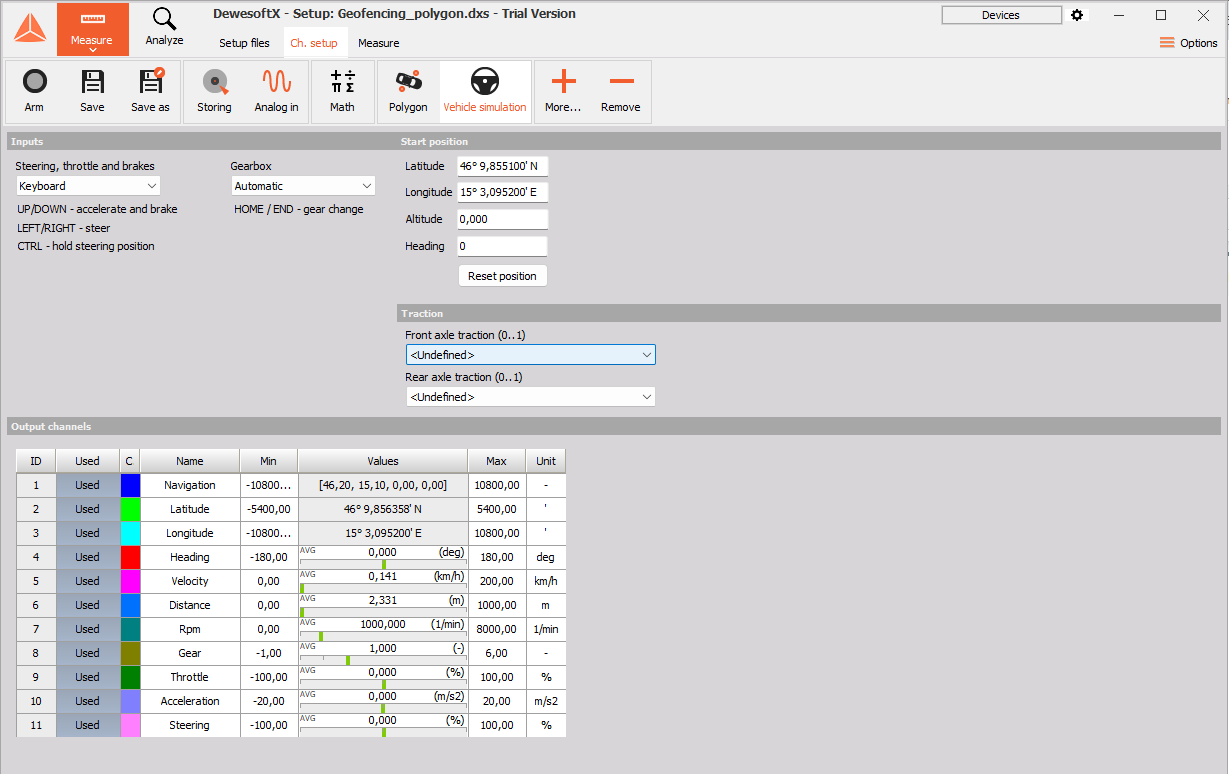
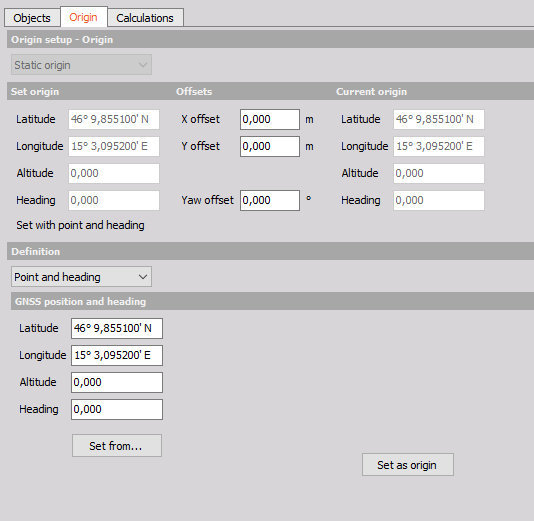
In the Vehicle simulation plugin, we set the Latitude to 46° 9,855100' N and the Longitude to 15° 3,095200' E. No other settings need to be modified.
Setting up the Polygon plugin
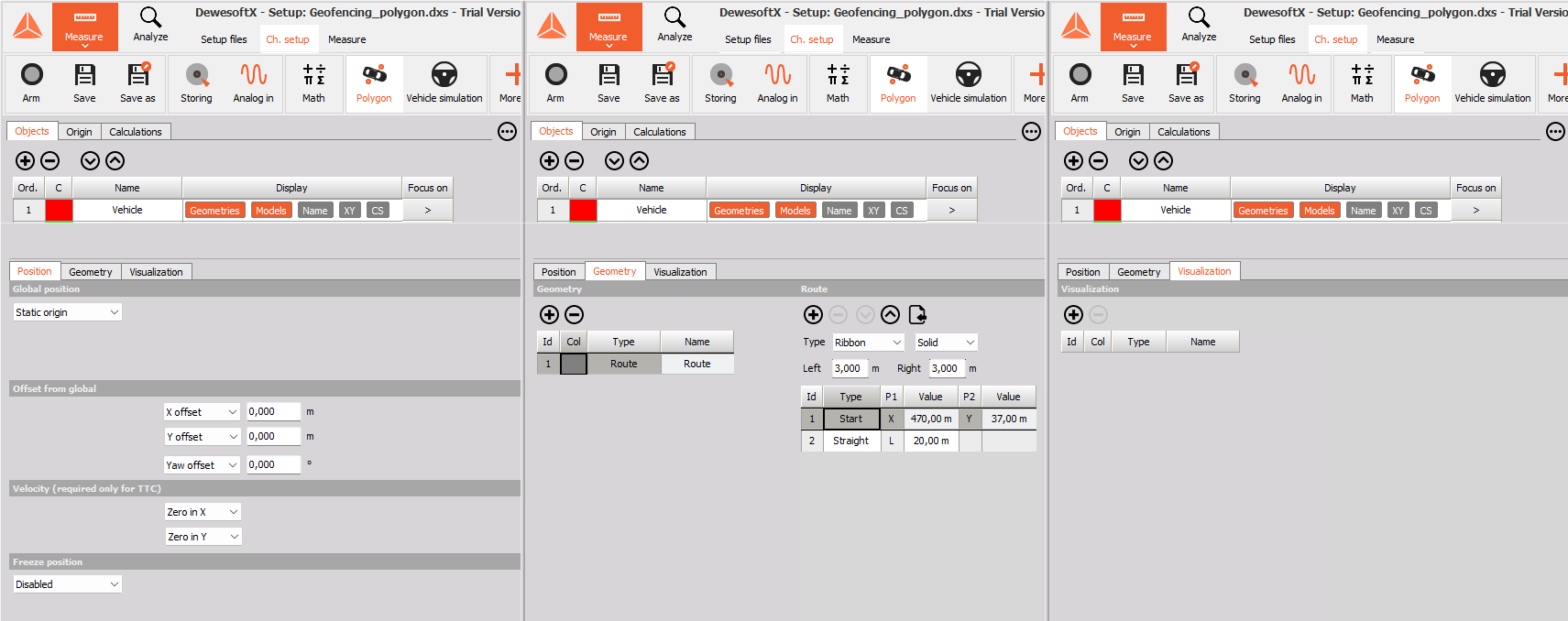
In the polygon plugin, we will first create a new object, called Vehicle, and define it. The navigation channel under the Position tab should be set to Vehicle simulation/Navigation, and the Geometry should define the dimensions of the simulated vehicle.
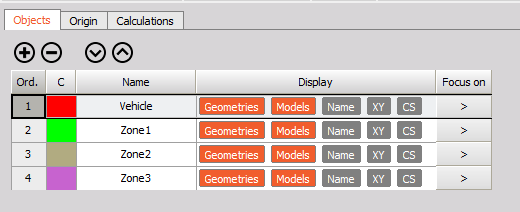
Next, we will define the actual zones we want to record the data files in.
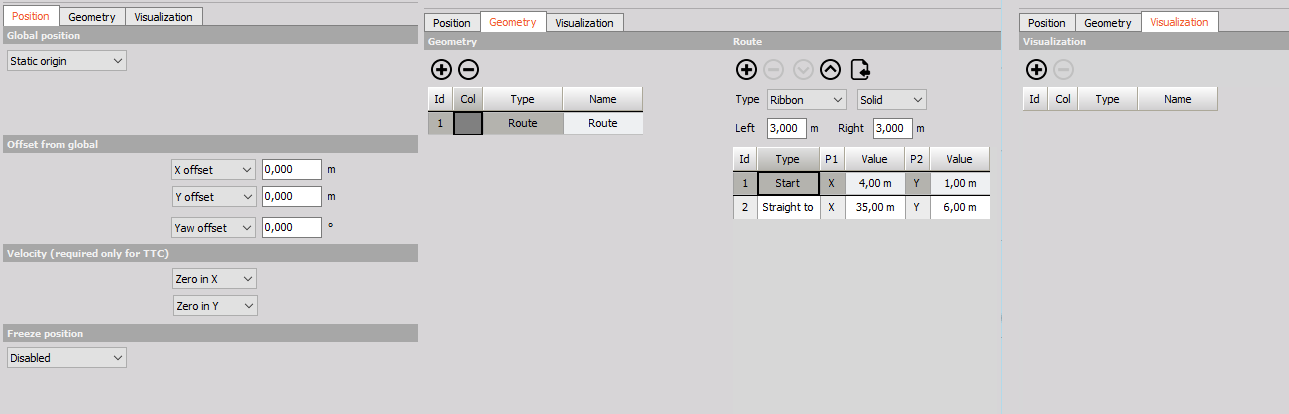
The process here is simple: since the zones are static, our global position will be a Static origin, and the zones will in no way be offset from this point. Geometrically, the zones will be defined as Routes of different lengths and starting positions.
Below is an example of one of the defined zones.
Under the Origin tab, we define the origin with a Point and heading.
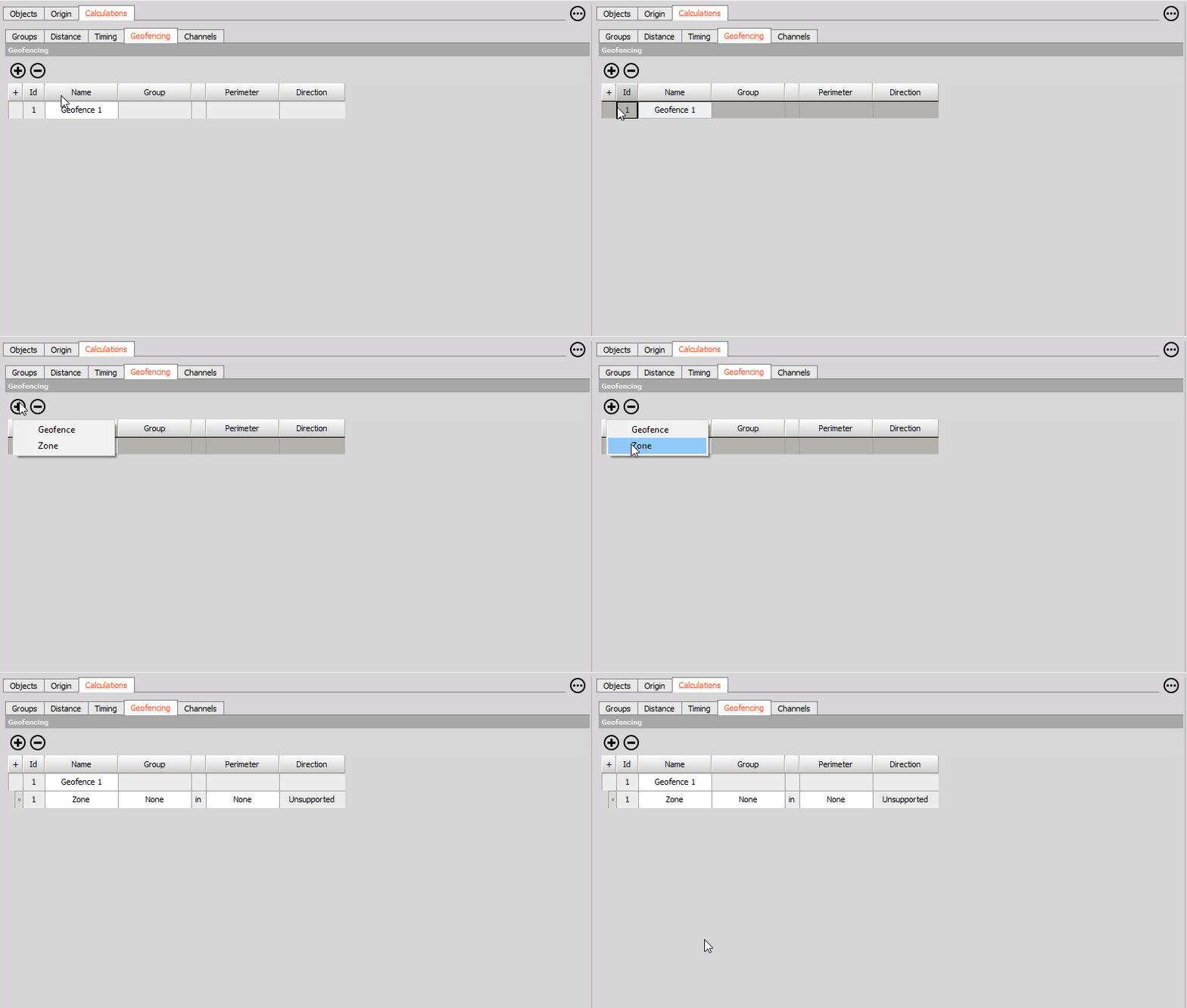
Geofencing is defined under the Calculations tab. Once we open the Geofencing tab, we first add the first empty Geofence with the plus button, and we can populate it with zones by selecting the Geofence, pressing the plus button, and adding a Zone.
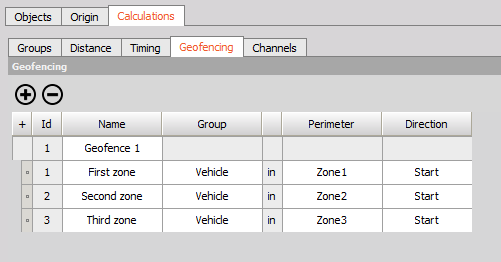
Once we've added all the Zones we want to work with, we have to define them. We can configure the following columns:
- Name: here we define the name of the Zone or Geofence.
- Group: here we define the calculation reference or trigger.
- Perimeter: here we define the geographical boundary of a Geofence.
- Direction: Defines whether the calculations should be done if we enter the Zone from its start or end position.
To demonstrate, we will configure our geofence in such a way that the calculations will be done if we enter the zones from the direction of the starting point.
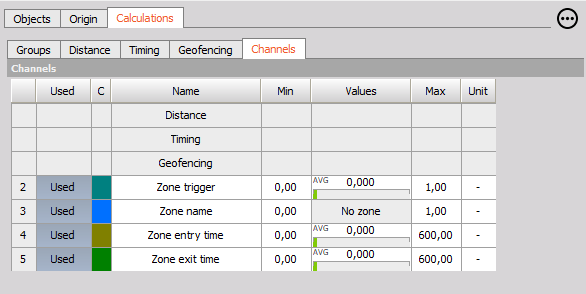
In the last tab, Calculations, we get to enable the channels we would like to calculate. We can choose between:
- Zone trigger: Denotes whether the trigger condition has been fulfilled (1), or not (0). If the condition is fulfilled, we are within a zone. If the trigger is 0, the group isn't within a zone.
- Zone name: Denotes the name of the zone the reference group is currently in. The zones are defined numerically, with -1 denoting that the group isn't within any zone, and 0 onwards denoting zones.
- Zone entry time: Denotes when the reference group entered the zone.
- Zone exit time: Denotes when the reference group exited the zone.
Setting up Storing settings
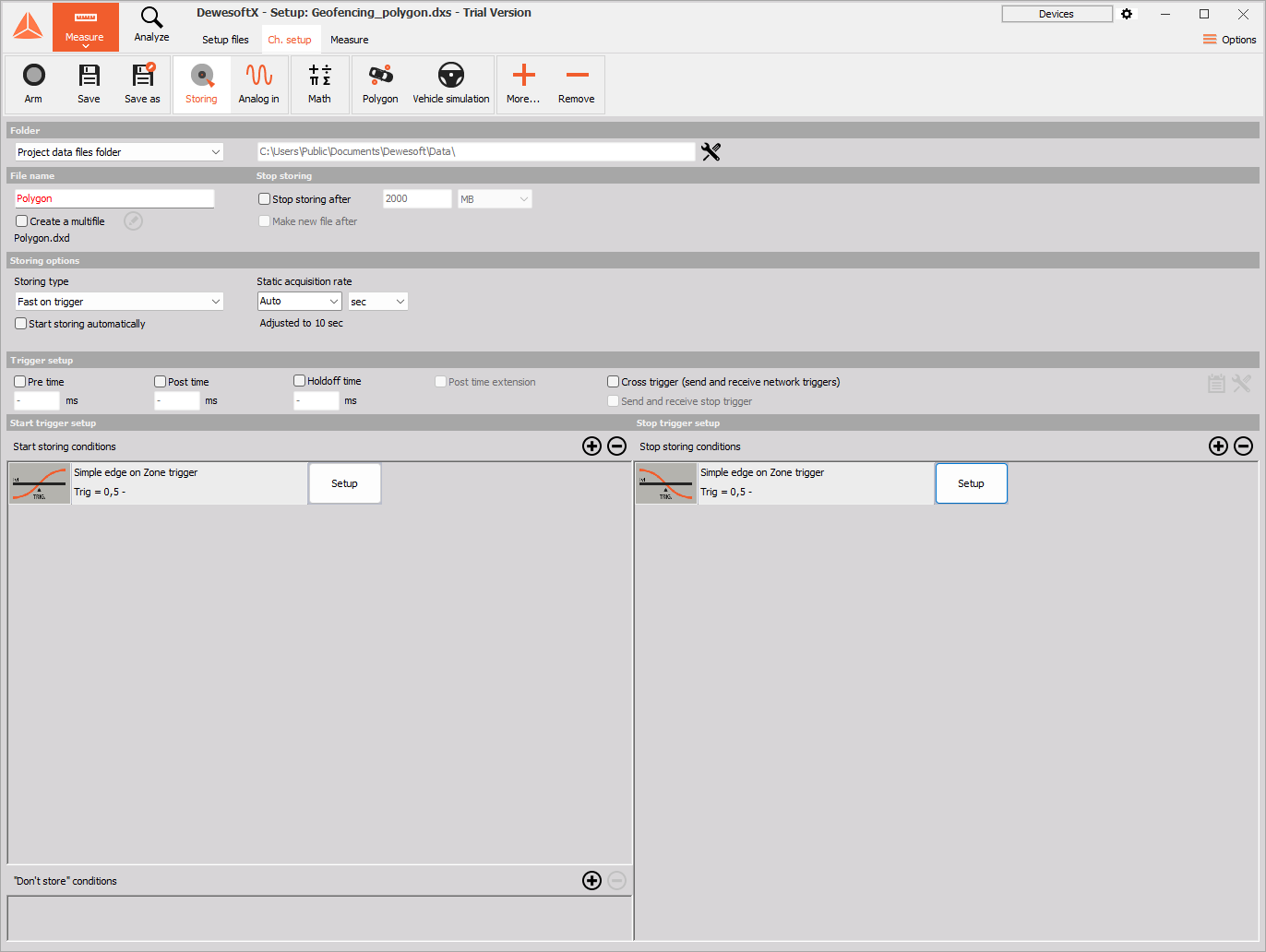
We will set our storing type to Fast on trigger. Since we only want to record data once we're in the above specified zones, our trigger channel will be Zone trigger, and our condition will be a positive simple edge with trigger level 0.5.
Result
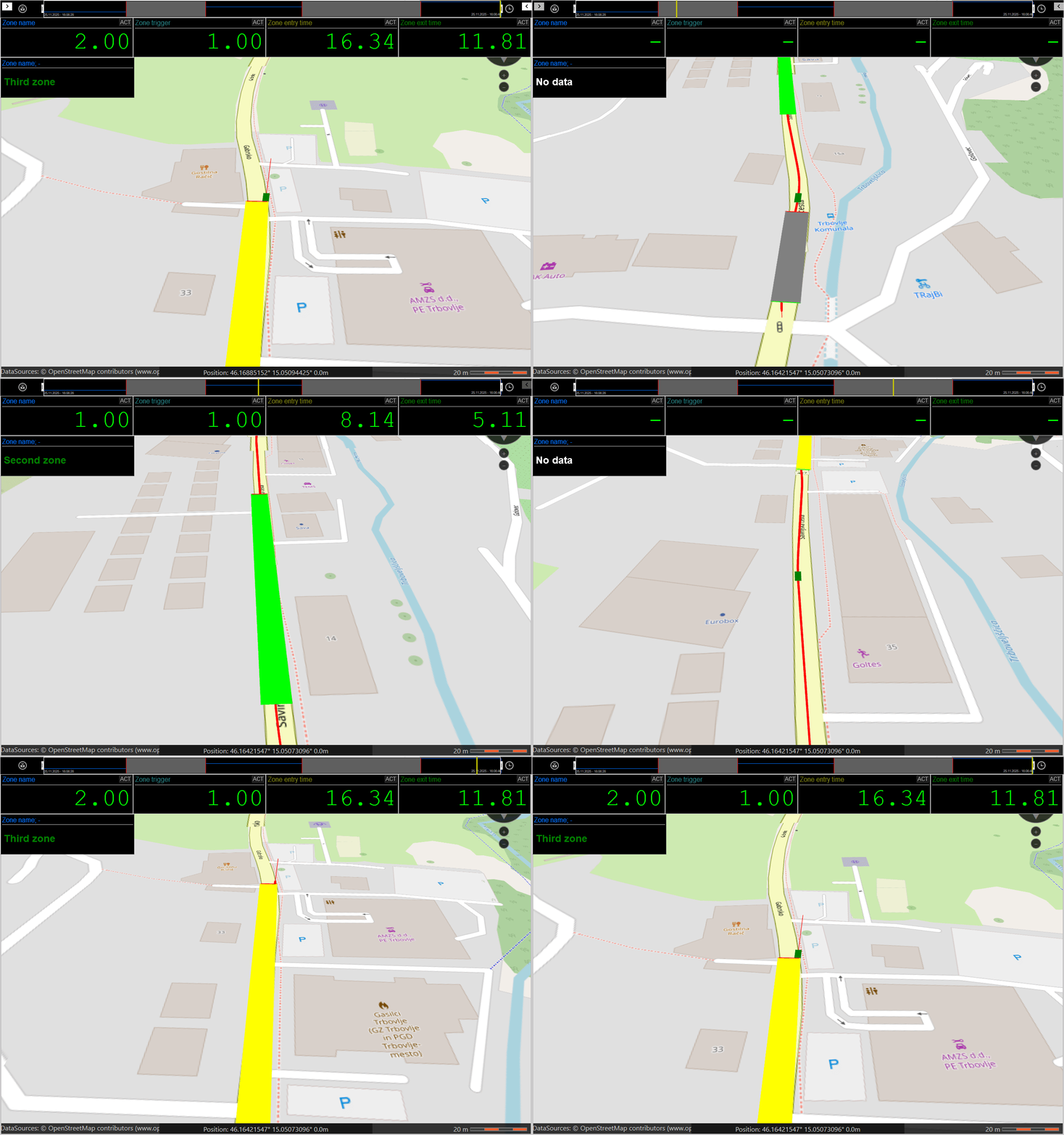
The gif below displays the final result of our test.
Additional information
Additional information regarding Basics statistics can be found in the following literature:
- DewesoftX 2025.2 Released - Sample Below 10Hz, Monitor Thermodynamic Cycles and More
- Virtual 3D Polygon for Precise GNSS Positioning Testing
- POLYGON User Manual
The datafile and setup file used in this link are located in this Google Drive.