
Description of the problem
The computer is having trouble recognizing the Dewesoft EtherCAT devices or there are issues with connection or missing samples.
Description of the solution
Here are the steps that can resolve the problem when EtherCAT device is not detected:
1st step
Check if there is an Ethercat DAQ Filter driver installed on your computer like shown on the picture below.
If the driver is installed, make sure, the checkbox is checked in front of the driver.

If the driver is not installed, it can be downloaded from our web page.

2nd step
If the driver is already installed and the devices are still not recognized, the Speed & Duplex of the network card needs to be adjusted manually.
- Go to network connections
- Right-click on the connection where the EtherCAT devices are connected
- Go to configure, advanced options, find Speed & Duplex, change the value to 100 Mbps Full Duplex

3rd step
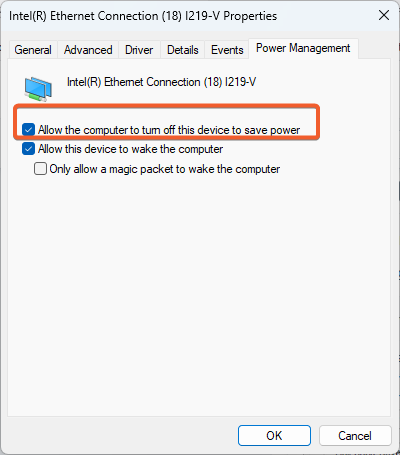
Some network cards come with a setting enabled to Save Power which has been known to cause Data Loss issues when recording within DEWESoft. In the same window as Step 2 go to the Power Management tab and turn off Allow the computer to turn off this device to save power.
4th step
Uncheck "Disable EtherCAT interface". 
5th step
If all those steps still don't allow detecting EtherCAT devices, you might check your Firewall settings . Disable it and reconnect the EtherCAT device.
6th step
Antivirus programs might also block the EtherCAT communication. Disable or uninstall your antivirus program and try to reconnect the EtherCAT device. Below is the list of known antivirus programs that usually blocks the EtherCAT communication.
- Symantec Endpoint Protection
7th step
In case Windows 7 is used, it needs to be updated to Service pack 1 which accepts the 256-bit certificates. You can find the proper update versions on the following link, for both the 32-bit and for 64-bit version.
General suggestions to check with connection issues
- Use Intel network cards if possible, older models and drivers are more reliable.
- Realtek PCIe cards generally work better with old drivers.
- ASIX USB to Ethernet adapters seem more reliable than Realtek ones.
- If using a suggested/old driver doesn’t help, try changing the following settings in the network adapter properties (not all are present on all cards/drivers):
Advanced -> Advanced EEE: Disable
Advanced -> Energy Efficient Ethernet: Disable
Advanced -> Green Ethernet: Disable
Advanced -> Interrupt Moderation: Disable
Advanced -> Link Speed Battery Saver: Disable
Advanced -> Maximum Number of RSS Queues: 1
Advanced -> PCI Express Link Power Saving: Disable
Advanced -> Power Saving Mode: Disable
Advanced -> System Idle Power Saver: Disable
Advanced -> Transmit Buffers: as large as possible
Advanced -> Ultra Low Power Mode: Disable
Power Management -> Allow the computer to turn off this device to save power: unchecked <- this is the most important setting of all
- Using the High performance power plan to keep the CPU at highest frequencies helps with stability, especially when using USB adapters.