Introduction
This article complements the Official release newsletter and focuses on graphically representing features that were briefly mentioned in the newsletter under the "What else is new?" section.
The most notable features in the 2026.3 release are fully presented in the Official release newsletter and are listed in the following list:
- DewesoftRT: New Features Across All Embedded Devices
- Updated UI and UX
- Sound Quality: Hearing Model Tonality
- dB Data Presentation on Digital Meter
- Store Video in MP4 Format
To enhance the image, either right-click the image directly, which slightly enlarges it, or ''Open image in new tab'' by right-clicking it, which allows you to zoom further into the image.
Software support for new devices and synchronization mechanisms
In the 2026.3 version of the software, our developers added support for
- SIRIUSr-HD-16xSTGS-L1B7f front option,
- SIRIUS ACC DualCore with 10 mHz high-pass filter option,
- PTPv2 synchronization mechanism with XTSS integration for SIRIUS-R8 systems.
ISO 3747 standard is now supported in Sound Power module
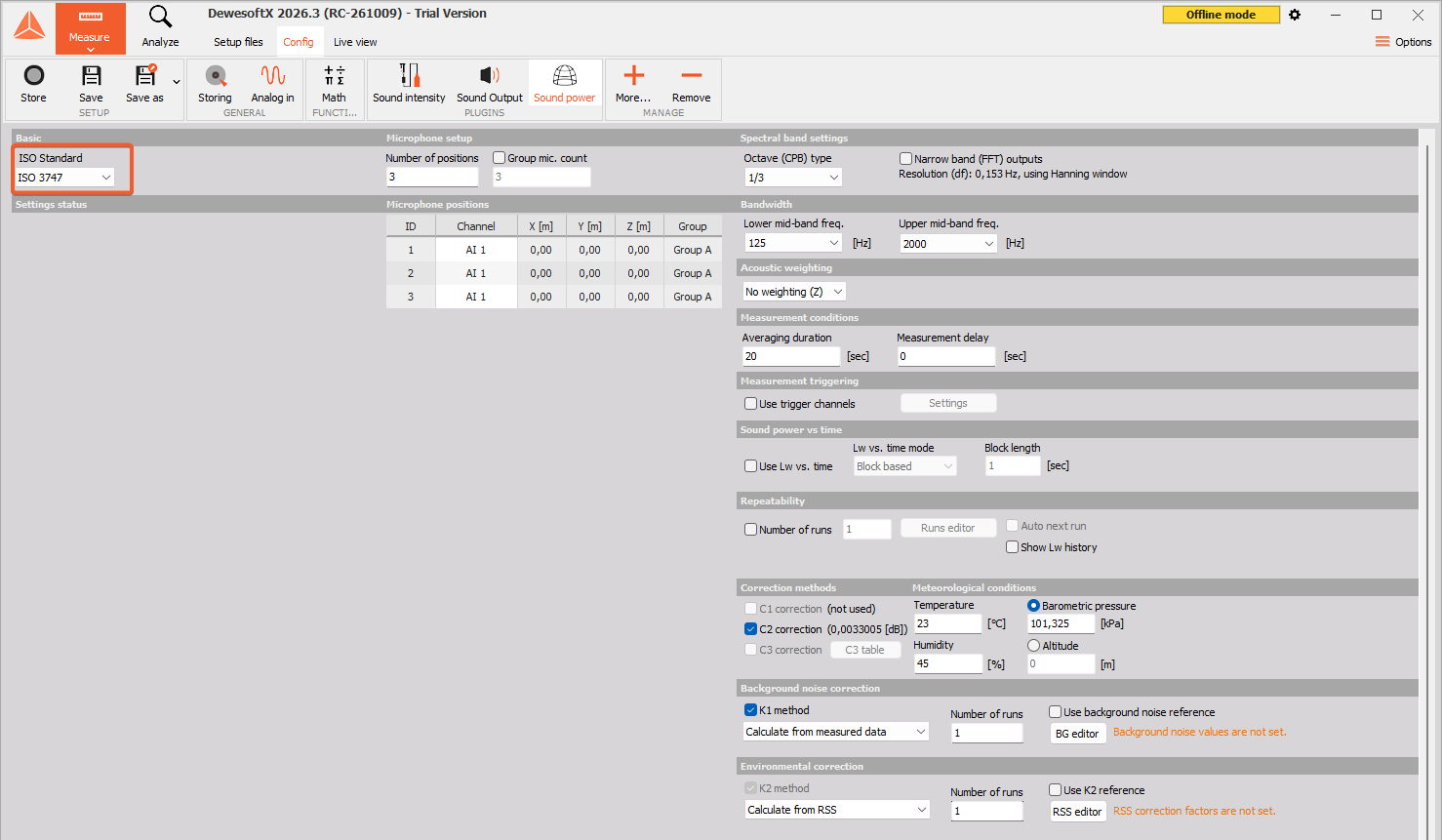
Starting with Dewesoft version 2026.3 (Sound Power module version 5.8.0), sound power level determination can be performed in accordance with ISO 3747, thus enabling sound power level determination using the comparison method in reverberant environments. This functionality expands the existing sound power measurement capabilities, providing greater flexibility for acoustic testing in real-world conditions, such as evaluating sound power emissions from data centers and assessing their potential impact on environmental noise.
Additional calculations in the Power module
As per the request of multiple users, our Power Analysis module has been expanded with 5 brand-new calculations: Induction motor slip, Torque ripple, Direct current ripple, Voltage change events according to IEC 61000-4-15, and Sliding total harmonic distortion.
Induction motor slip
Induction motor slip tells us the difference between how fast the motor's rotating magnetic field spins and how fast the rotor or shaft actually turns. The calculation was added to support Motor analysis, Motor model validation, and Motor control tuning for electric drives.
To enable this calculation in DewesoftX, the user should navigate to Motor Analysis > Mechanical rotation, then set up the Sensor type, Channel, Sensor, and enable the Calculate slip functionality.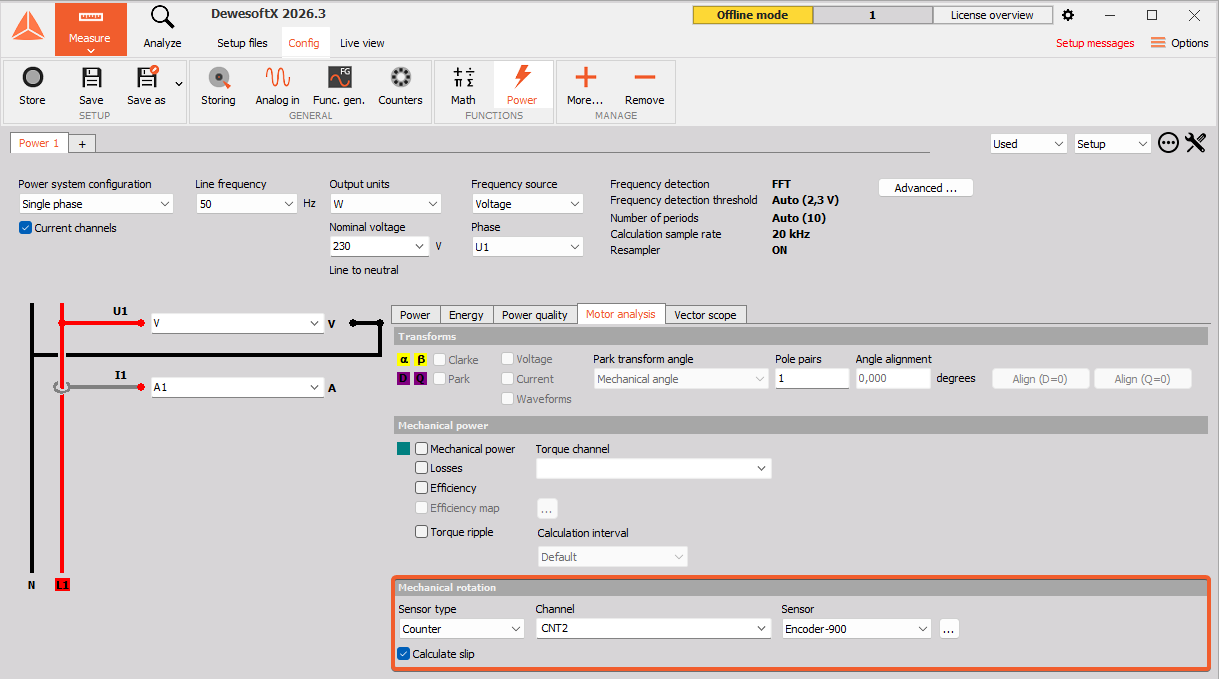
Torque ripple
Torque ripple is the uneven, jerky variation in rotational force that a motor puts out as it spins. It can be calculated per calculation interval or per shaft revolution, and it supports Motor analysis, Motor model validation, and Motor control tuning for electric drives.
To enable this calculation, the user should go to Motor analysis > Mechanical power, then enable the Torque ripple checkbox and select the desired Calculation interval.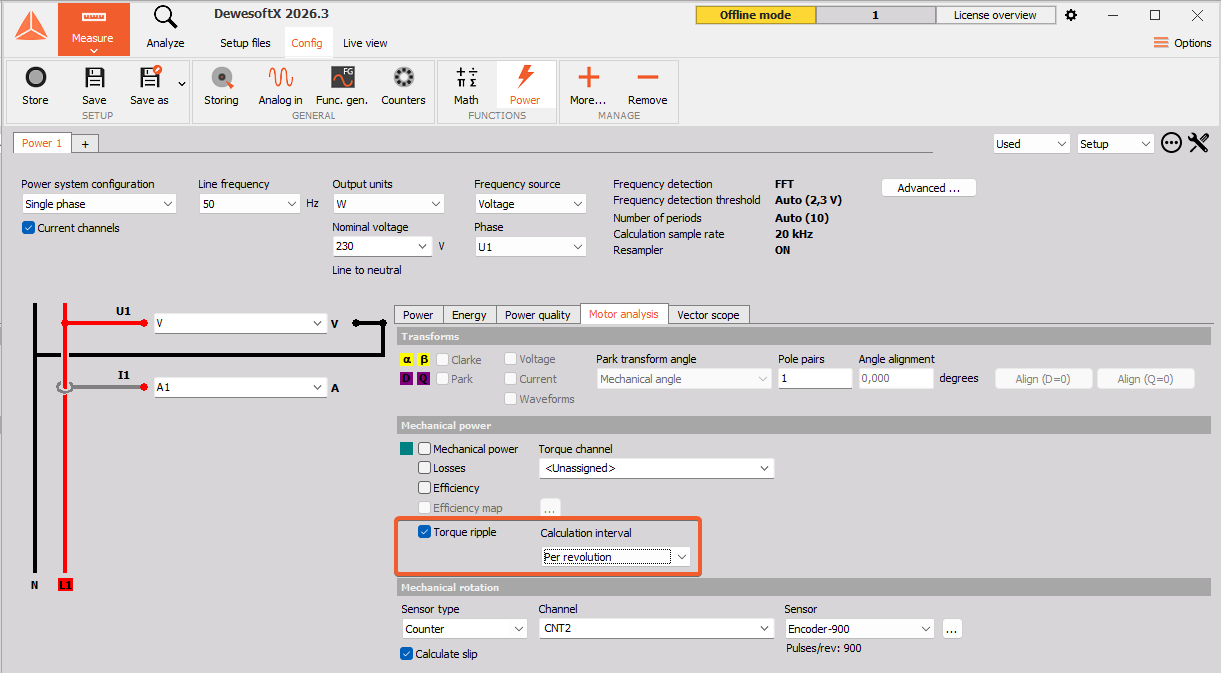
Direct current ripple
The Direct current ripple calculation can be enabled using the Calculate voltage ripple option, located at the right side of the DC power system configuration settings. The calculation is used to check the quality of direct current links in inverters, battery systems, electric vehicle chargers and photovoltaic strings.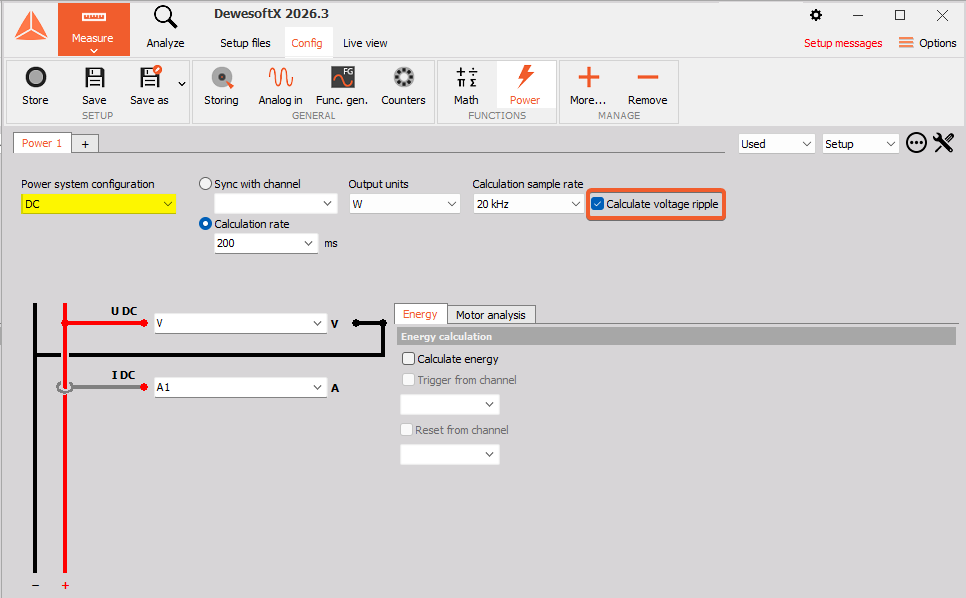
Voltage change events according to IEC 61000-4-15
Voltage change events are characterised by d(t), dc, dmax and t33, which are the quantities needed to test equipment emissions to IEC 61000-3-3 and IEC 61000-3-11.
To enable calculations according to IEC 61000-4-15, the user should navigate to the Power quality tab > Voltage change events, then enable the IEC 6100-4-15 checkbox.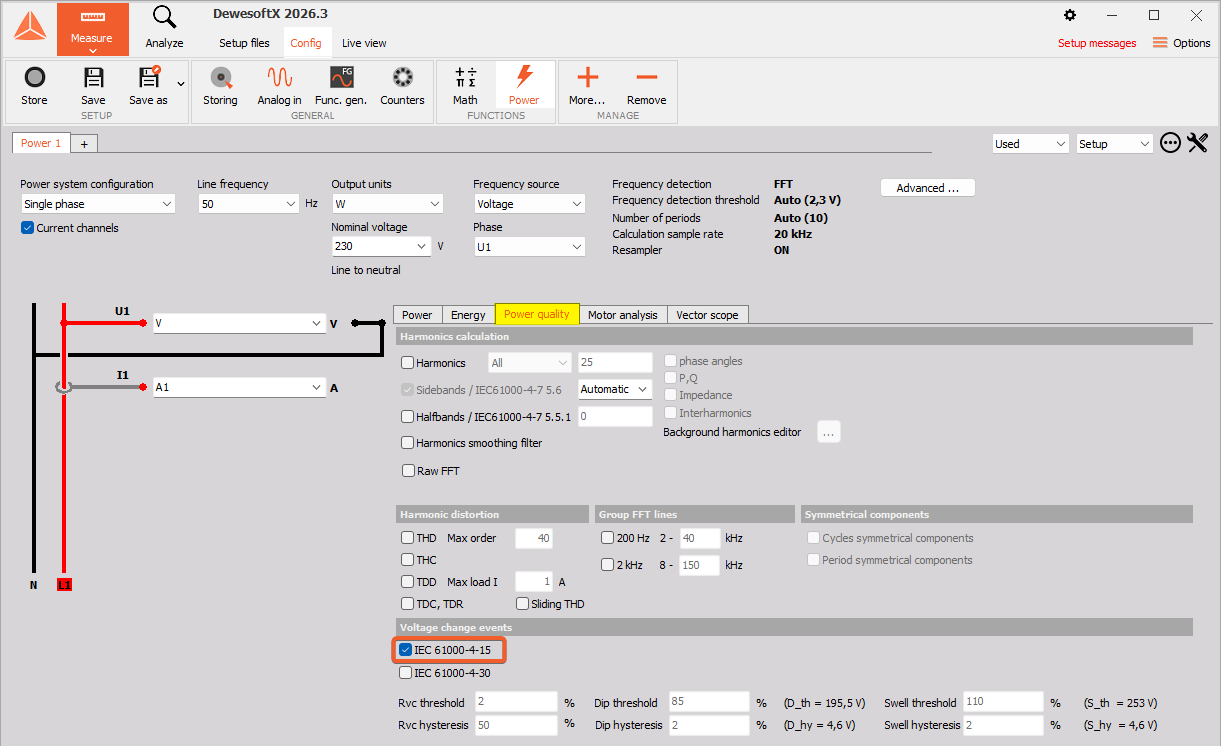
Sliding total harmonic distortion
Sliding total harmonic distortion of voltage and current calculation follows the FNN guidelines. It is updated every millisecond over a 40 millisecond window, so it shows short distortion bursts during switching, converter start-up, load steps and grid faults that the standard 200 millisecond evaluation smooths out.
To enable the Sliding total harmonic distortion, the user should navigate to Power quality > Harmonic distortion, then enable the Sliding THD checkbox.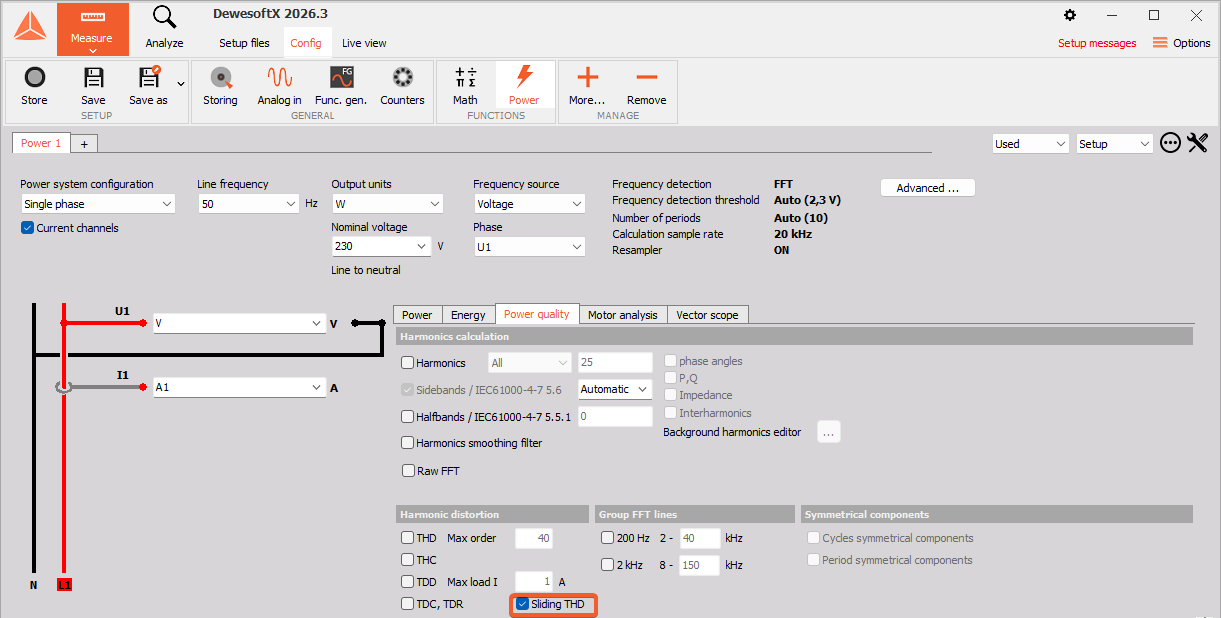
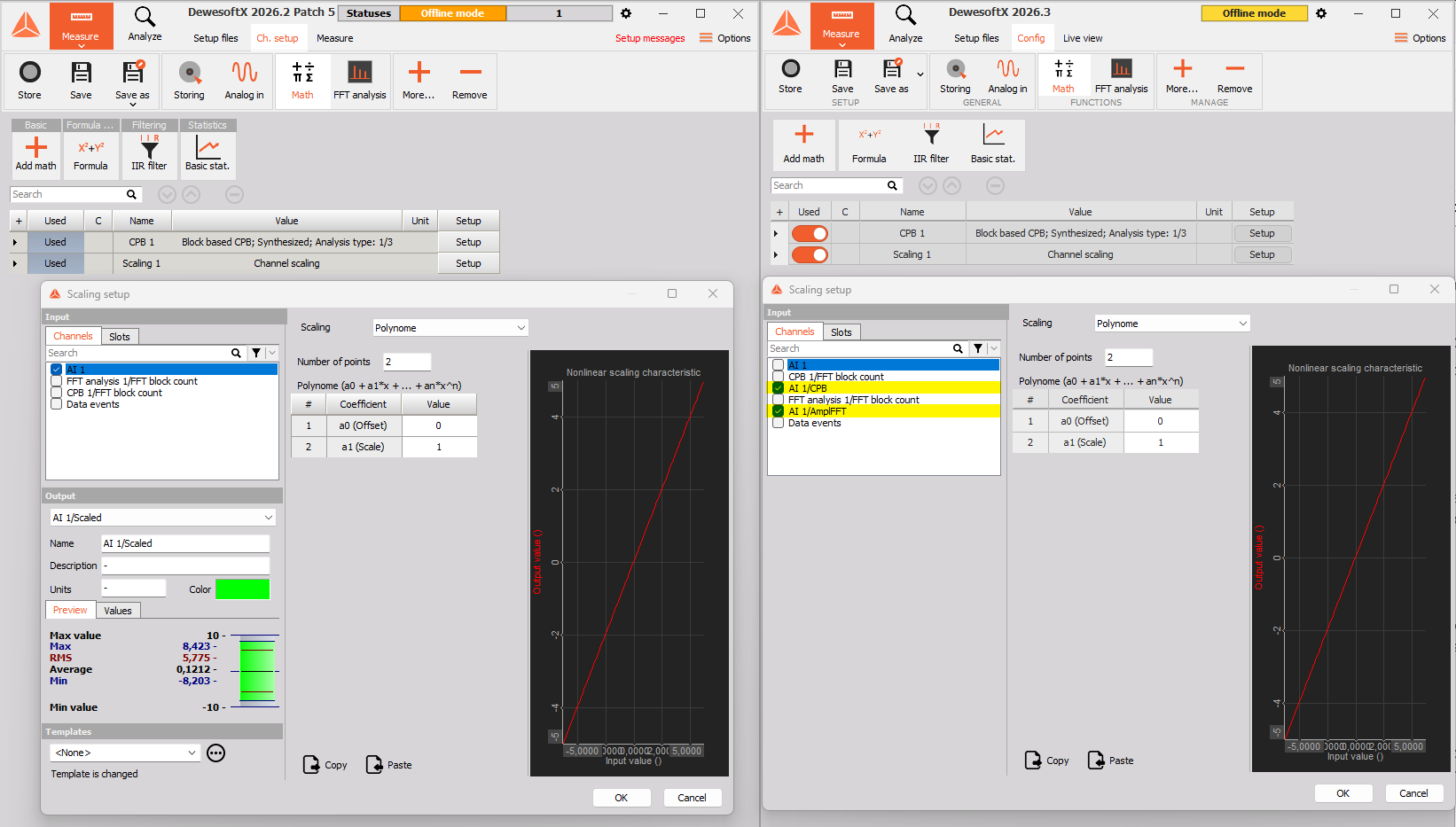
Scaling Module array channels support
In the previous versions of the Scaling module, a Decibel scaling option was added. Since this scaling is primarily useful for FFT and octave spectra, the Scaling module's input channels now support array inputs.
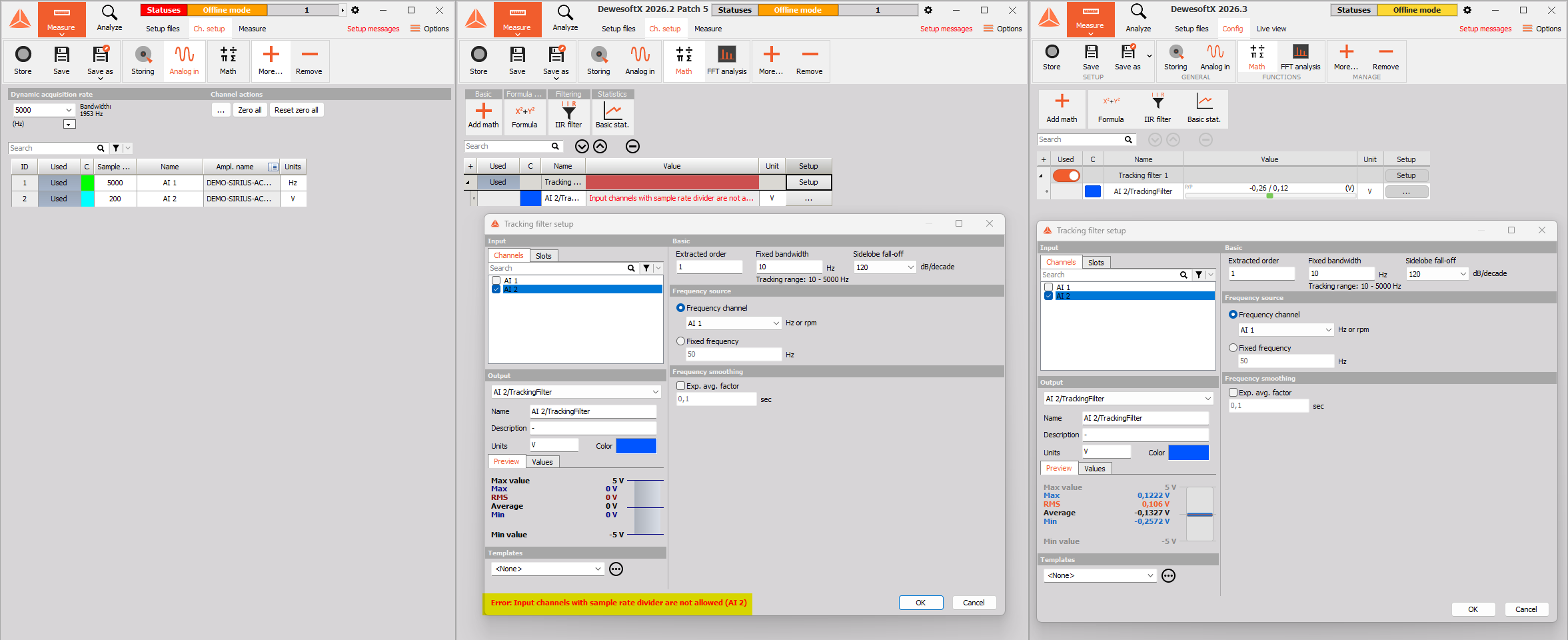
Tracking filter math support for Sample Rate Dividers (SRDiv)
Tracking filter math is most often used with accelerometer channels, specifically in setups where the accelerometer sample rate is lower than that of other channels. To accommodate this, version 2026.3 of DewesoftX adds support for SRDiv.
Two new features in the CEA module
Dewesoft 2026.3 brings some useful features to the CEA module, version 2.0.0, that will make the module nicer to work with:
Basic statistic was added to angle domain resampler without engine data
In the 2026.2 version of the software, our developers implemented an option for 2-stroke/4-stroke no engine type, in which input channels are resampled to angle/engine domain in order to use the resampling functionality of CEA along with a TDC offset and stroke determination without setting up engine geometry.
The 2026.3 version of the software now introduces Basic statistics, keeping this functionality in line with the other available options.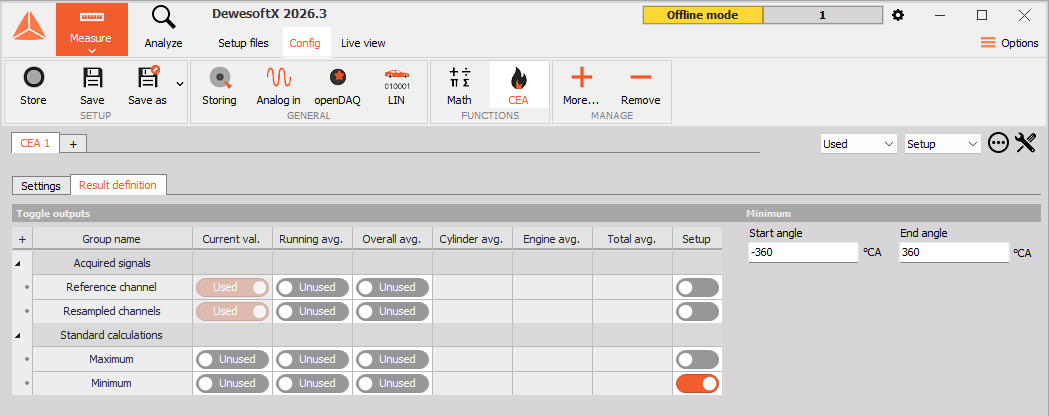
Custom geartooth is now supported as angle source
When configuring CEA's Encoder settings, it is now possible to set the Encoder type to Custom geartooth.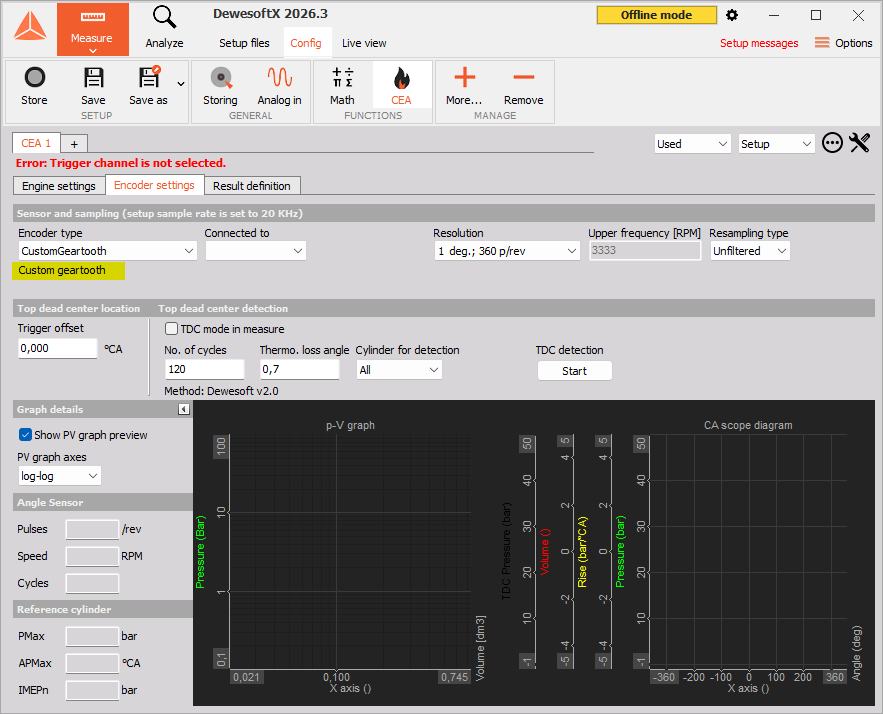
CAN module improvements
DewesoftX users working with the CAN module suggested several new features and enhancements that have been added in version 2026.3 of the software. These updates include auto-generation of the TX channel list, CAN message time shifts in Analysis mode, and NMEA2000 dbc integration directly to CAN module.
Autogenerate TX channel list in CAN module
The new Autogenerate functionality allows one to automatically generate channels that are already present in the setup file. To use it, one should navigate to the CAN module tab, click the Autogenerate button, and select whether to include All channels or only channels set to Used. Additionally, one can autogenerate all channels with a selected Signal state, or choose among individually listed Channel groups.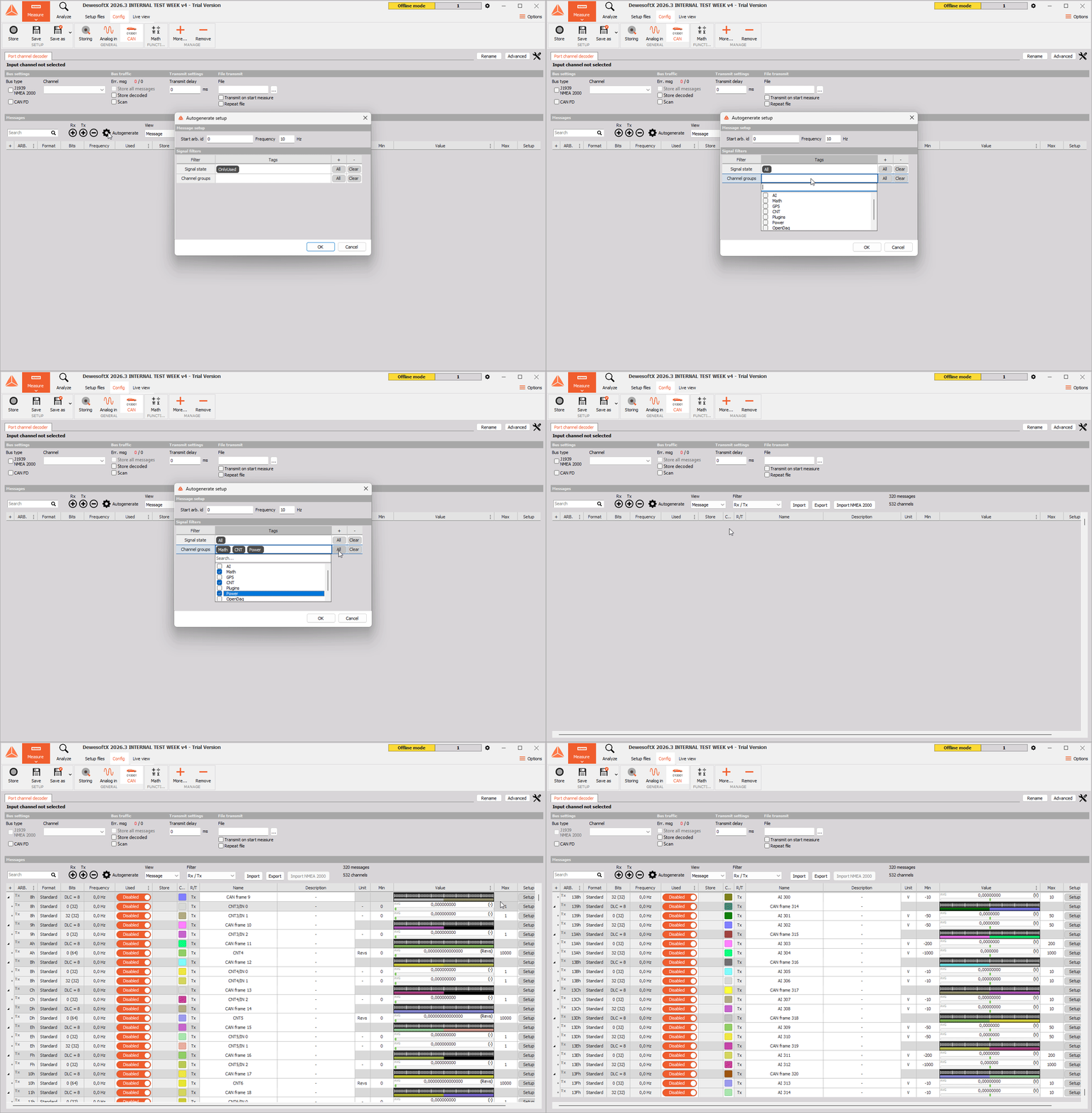
CAN message time shift in analyze mode
Sometimes, measurement systems include third-party CAN acquisition systems. Since these systems are not hardware-synchronized to the Dewesoft hardware, data delays can occur. To ensure as smooth an analysis as possible, our developers have now enabled the option to delay CAN channels during post-processing.
To delay a channel, one should navigate to Setup > CAN module, open the Settings of the channel to be delayed, and adjust the Time delay by the desired amount.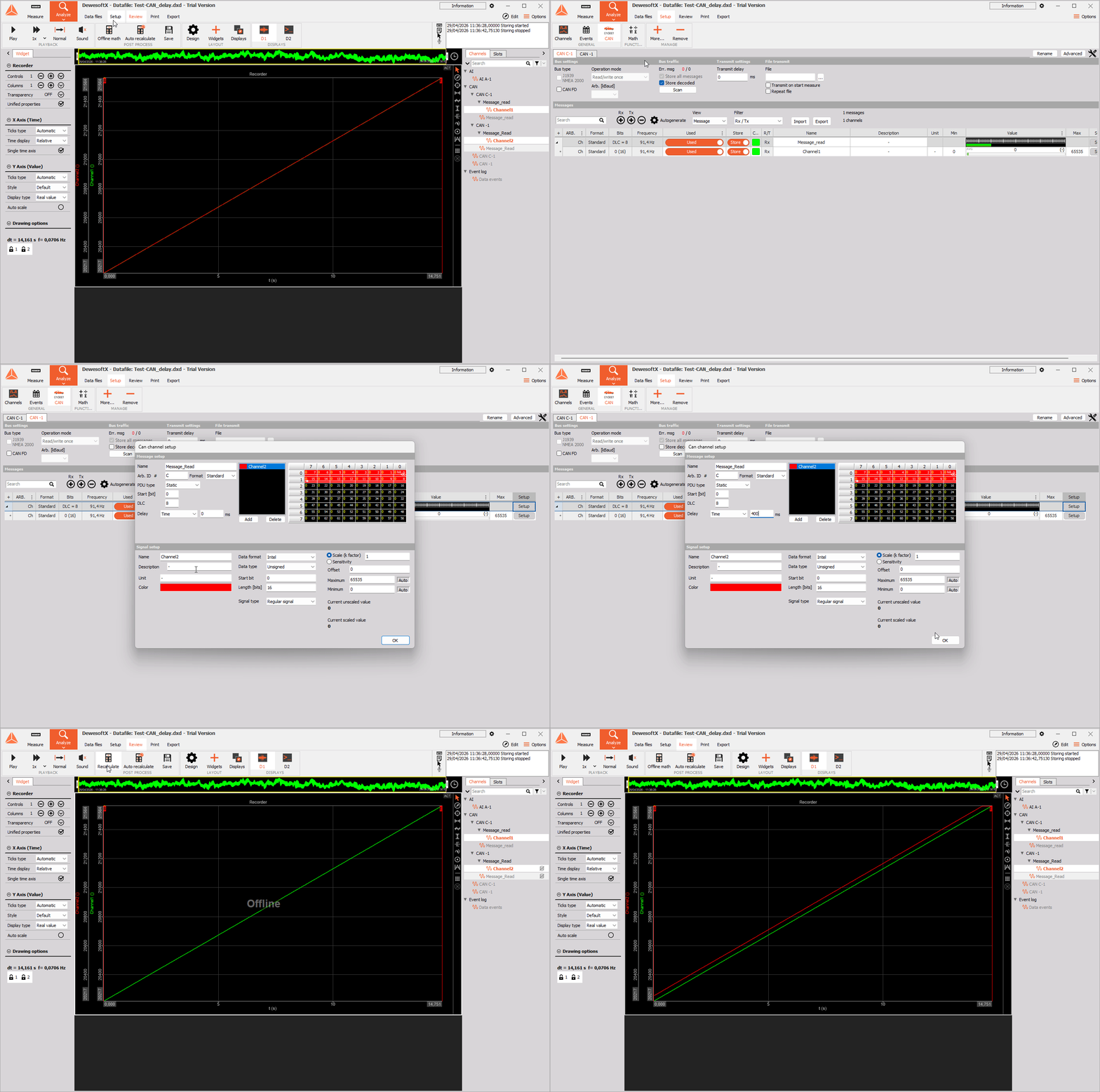
The delay functionality in post-processing will be available only for Rx channels that were stored with enabled Store all messages option!
NMEA2000 dbc integration directly to CAN module
To make CAN integration even easier, our developers have implemented an NMEA 2000 preset option directly within the CAN module. To import NMEA 2000 channels, one should navigate to the CAN module's Messages section and click the Import NMEA 2000 button. From there, one only needs to set the property count and confirm the import—the messages will then be generated and configured automatically.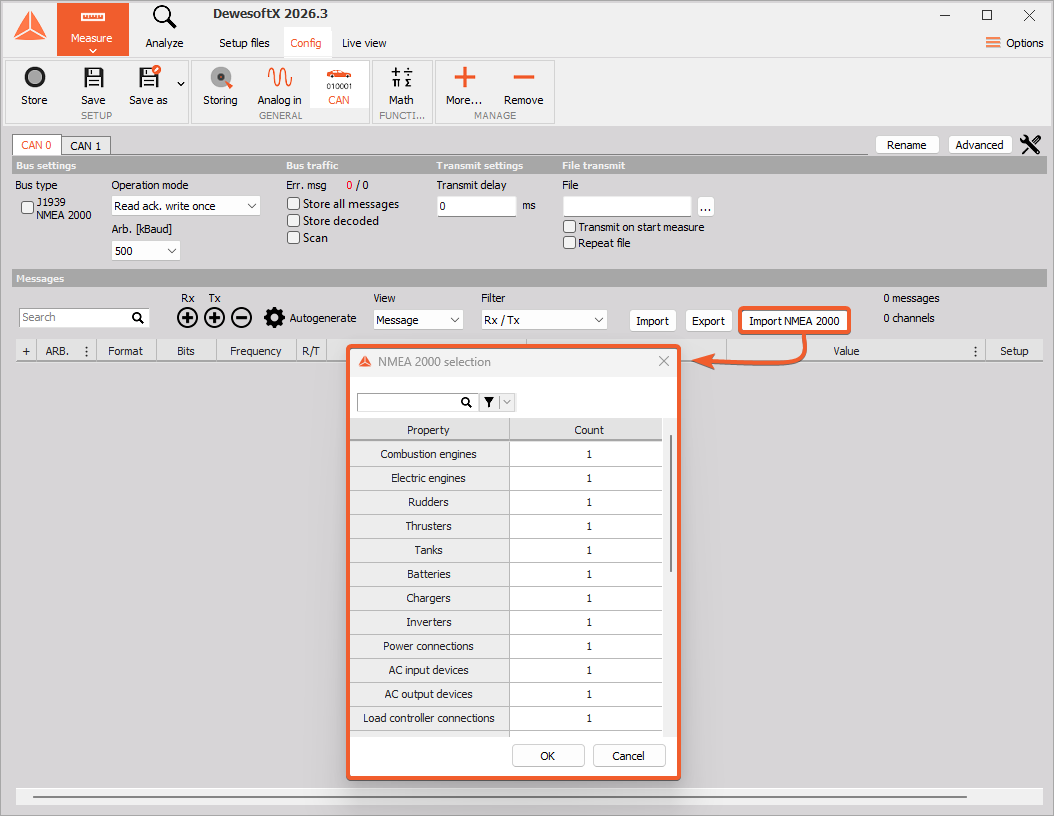
Please note that this functionality is available only with an active NMEA 2000 licensing option.
Data Merger support for data files stored with "Fast on trigger and Slow otherwise"
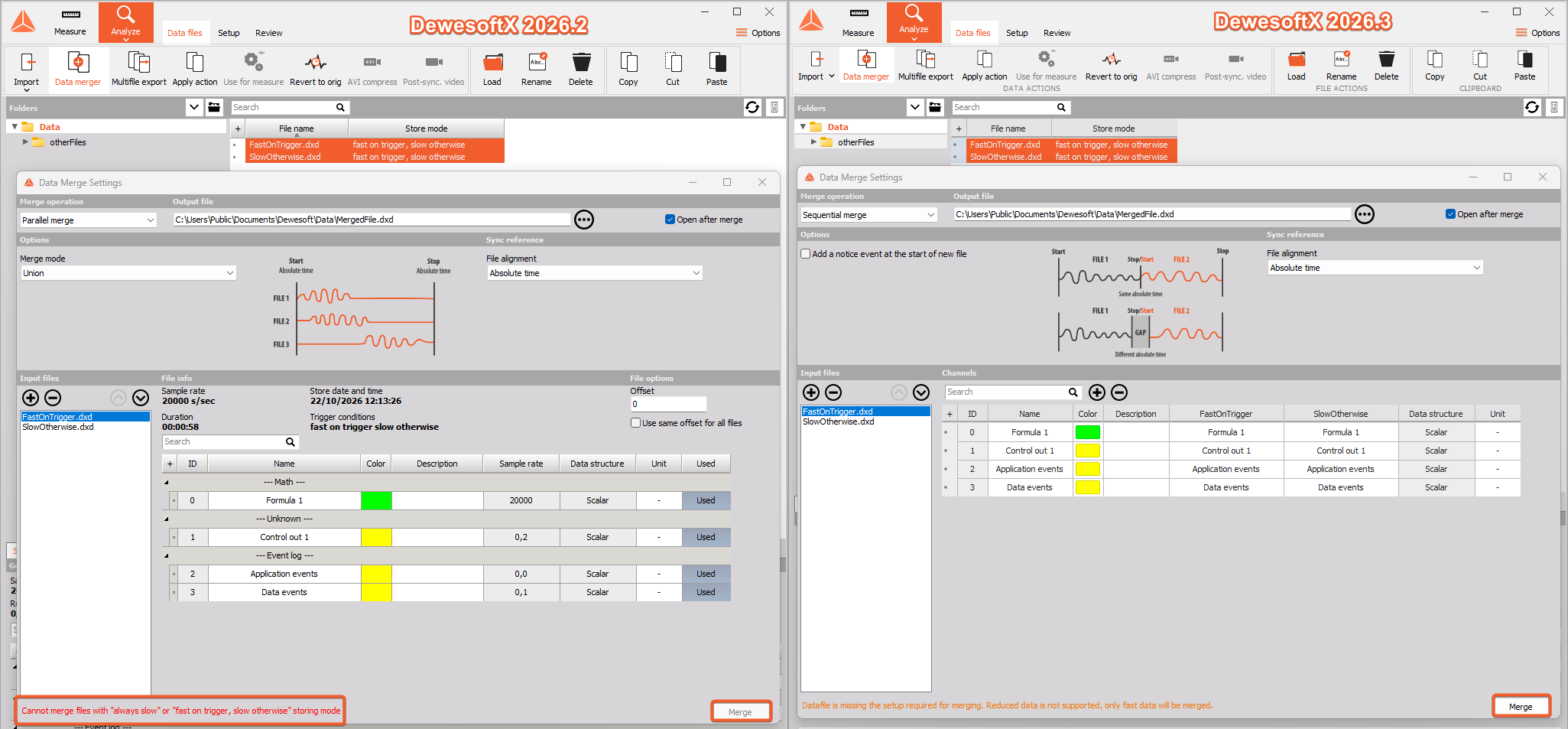
Data Merger now allows users to merge data files saved with the "Fast on trigger and Slow otherwise" storage option, expanding its range of use cases.
Expressions now support reading complex channel values and vector values as well as referencing by channel index
The new version of the software also includes important improvements to Expressions in Text Boxes and Spreadsheets.
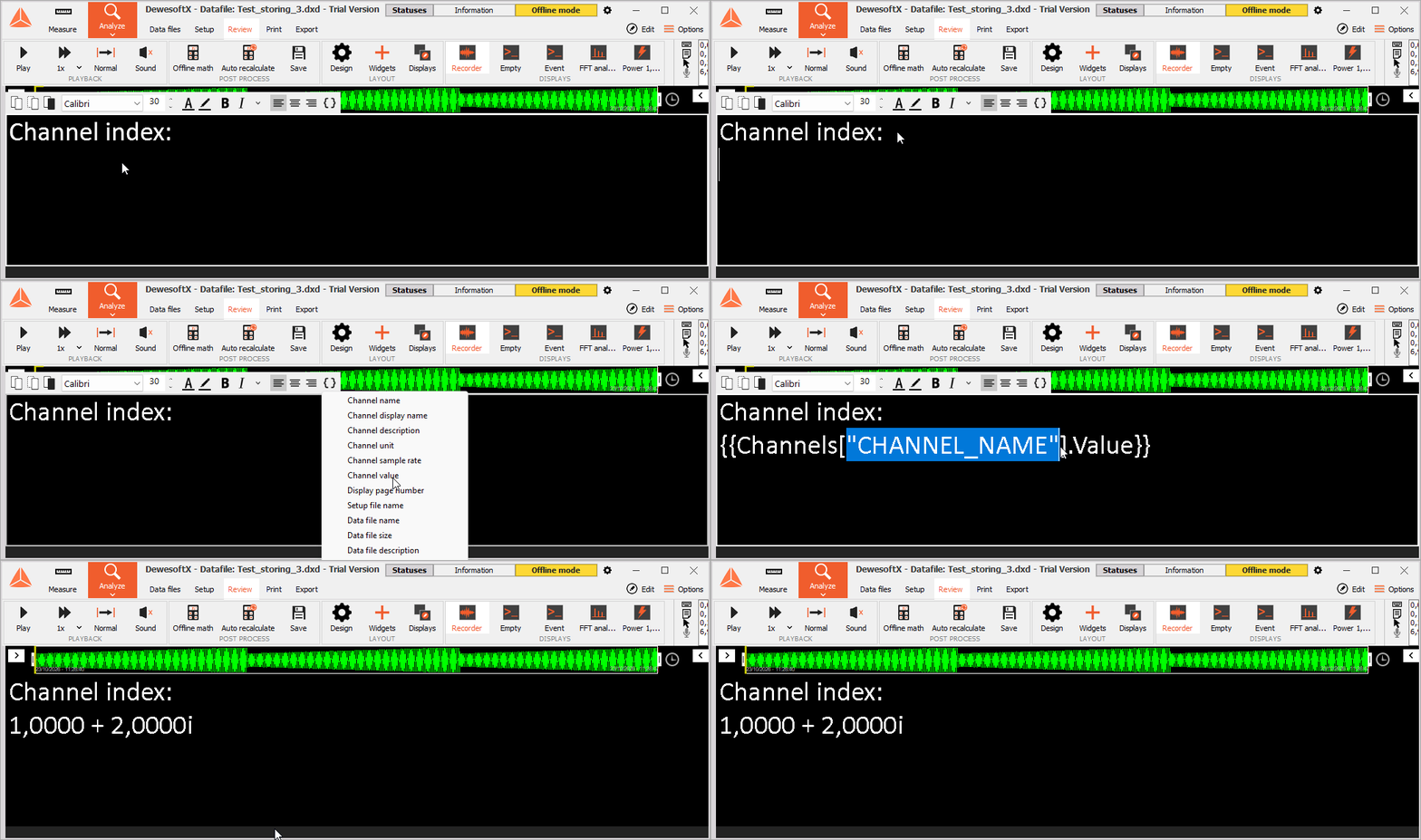
Expressions now support channel referencing by index
In the previous version of the software, expressions worked only if the user referenced the exact channel name. In the newest version of the software, expressions can be linked directly to the channel index.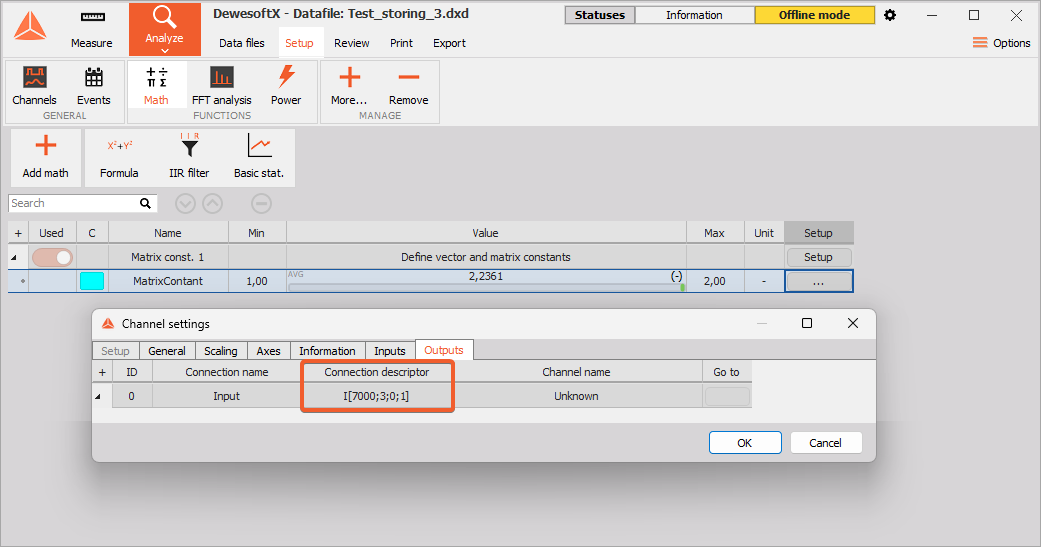
Expressions now support reading complex channel values and vector values
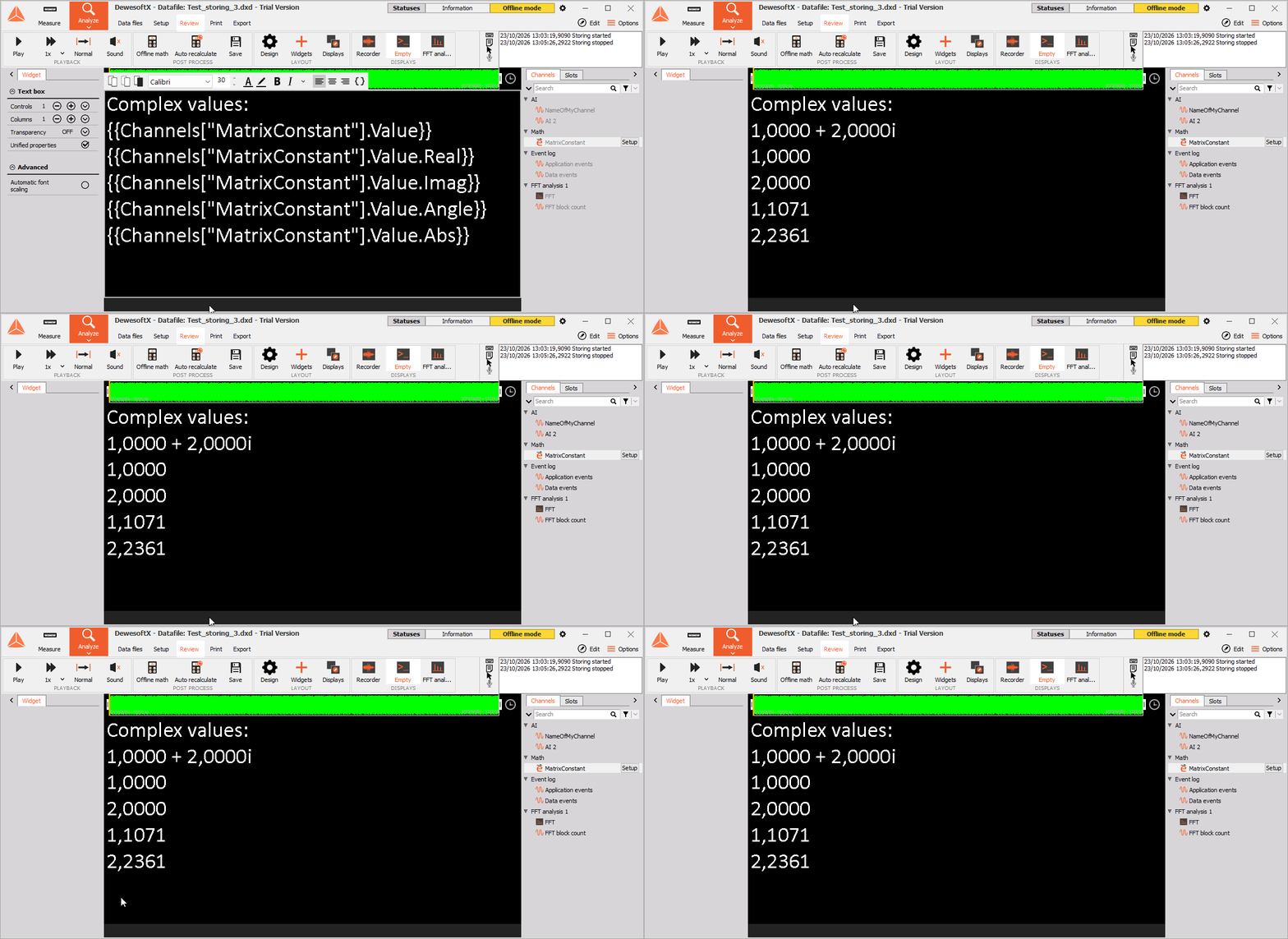
Since version 2026.3, the software's functionality has been expanded to support complex and vector channels. This allows users to observe a much wider array of data and channels.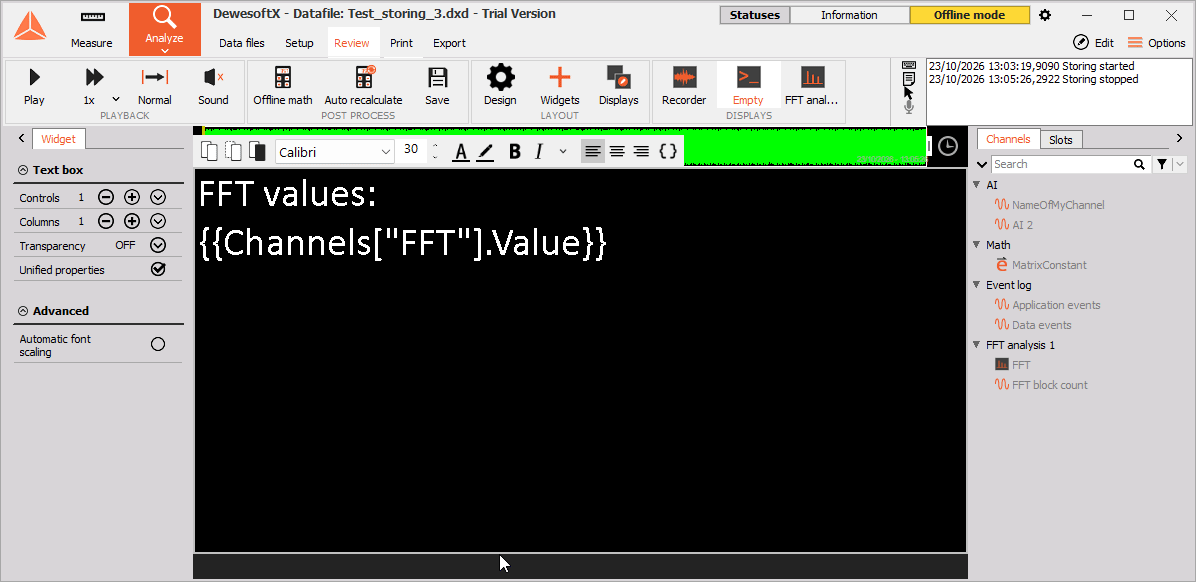 For complex values, the following expressions are available:
- {{Channels["AI 1"].Value}}
- {{Channels["AI 1"].Value.Real}}
- {{Channels["AI 1"].Value.Imag}}
- {{Channels["AI 1"].Value.Angle}}
- {{Channels["AI 1"].Value.Abs}}
You can now edit keyboard events in Analyze mode
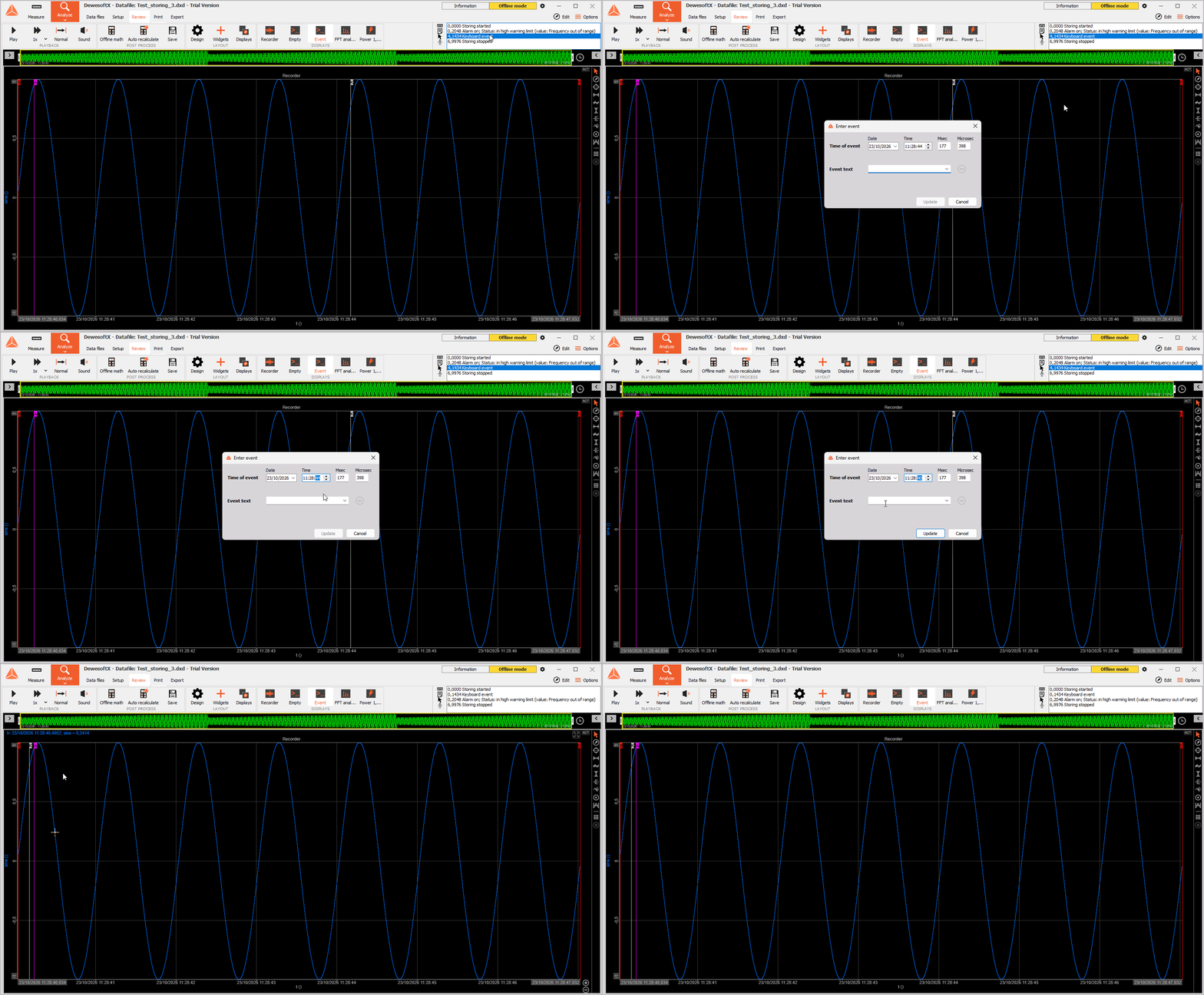
In version 2025.3 of the software, users were given the option to edit Keyboard events in Analysis mode. To further enhance this functionality, version 2026.3 additionally supports modifying event time information.
To perform change the time of the vent, right-click on the Keyboard event in the Event selector, then press the Edit button. It should then be possible to modify the Date, Time, Msec and Microsec position of the event.
Array channels can now be used as Global Variables
Multiple users have requested support for Array channels as Global variables, and the 2026.3 version officially introduces this functionality.
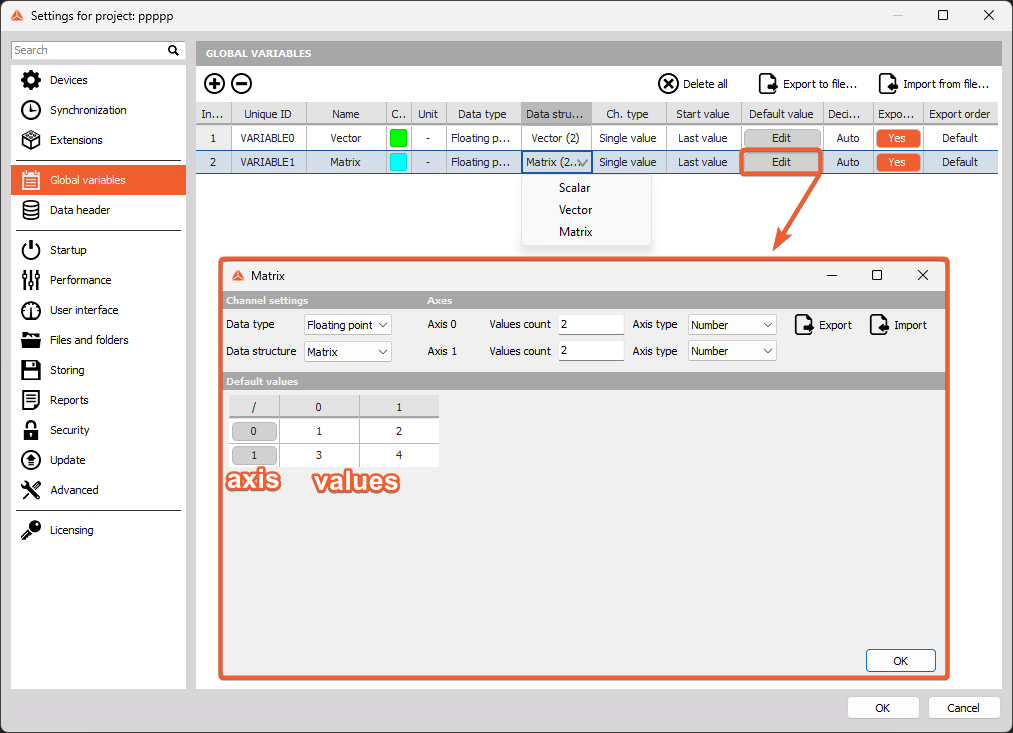
To configure these, the user should navigate to Settings > Global variables and set the Data structure to Scalar, Vector, or Matrix. When a vector or matrix is selected, the user can click the Edit button in the Default value column to assign default values and specify whether the axis type is a Number or String.
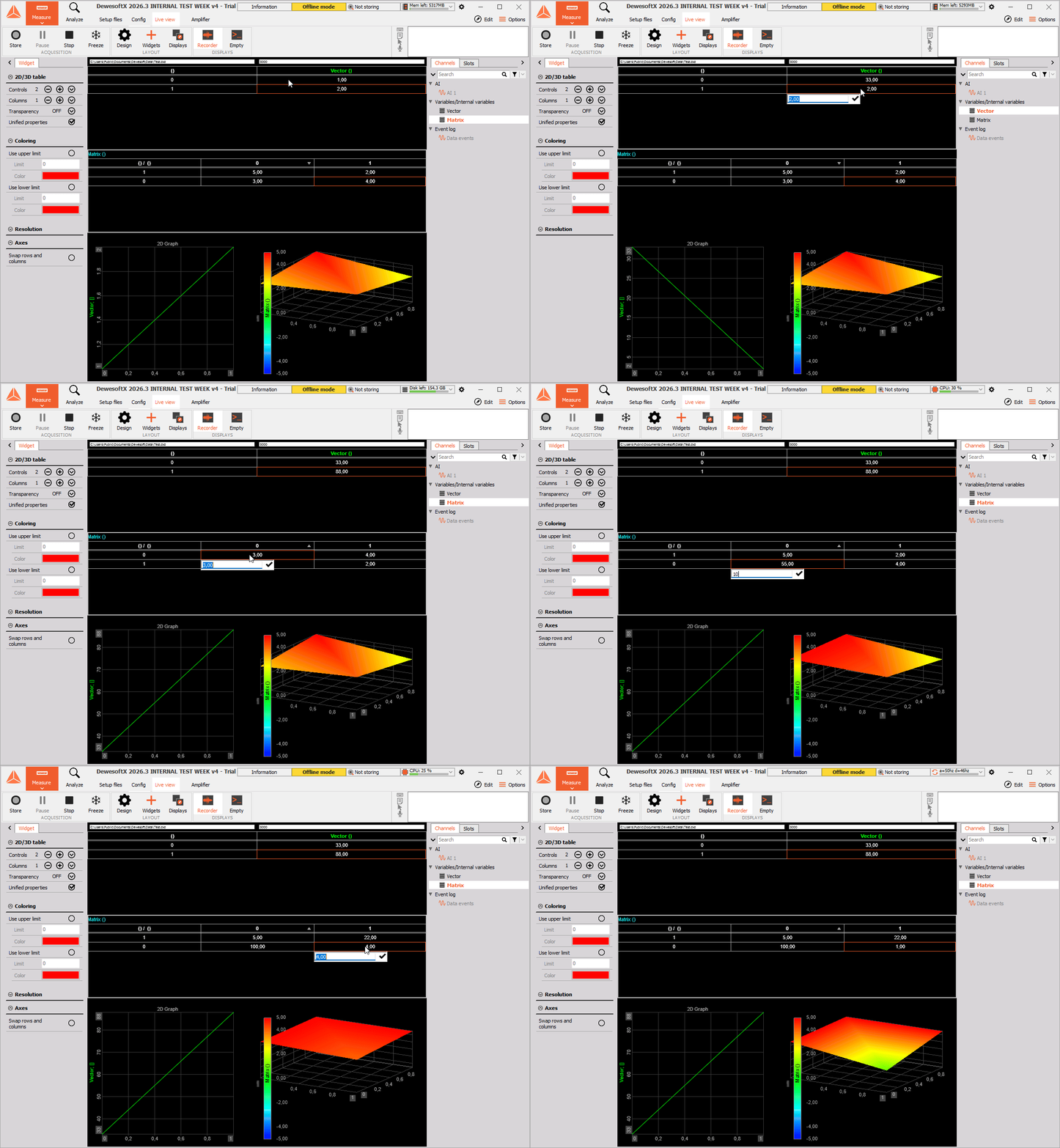
Once in Measure mode, these Matrix and Vector Global variables can be assigned to a 2D/3D table, allowing the user to easily reconfigure the values.
Different colors for Sequencer's IF block output lines
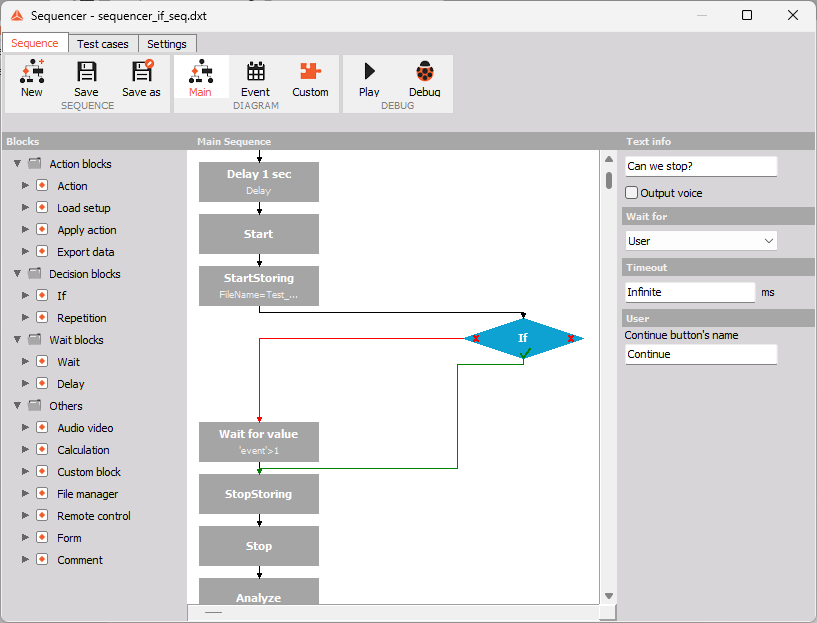
Working with a large number of Sequencer blocks results in many connection lines, which can make the configuration disorganized if not managed carefully. To prevent costly mistakes from incorrect connections following an IF block, our developers changed the connection line colors to green for True and red for False.
Changelog
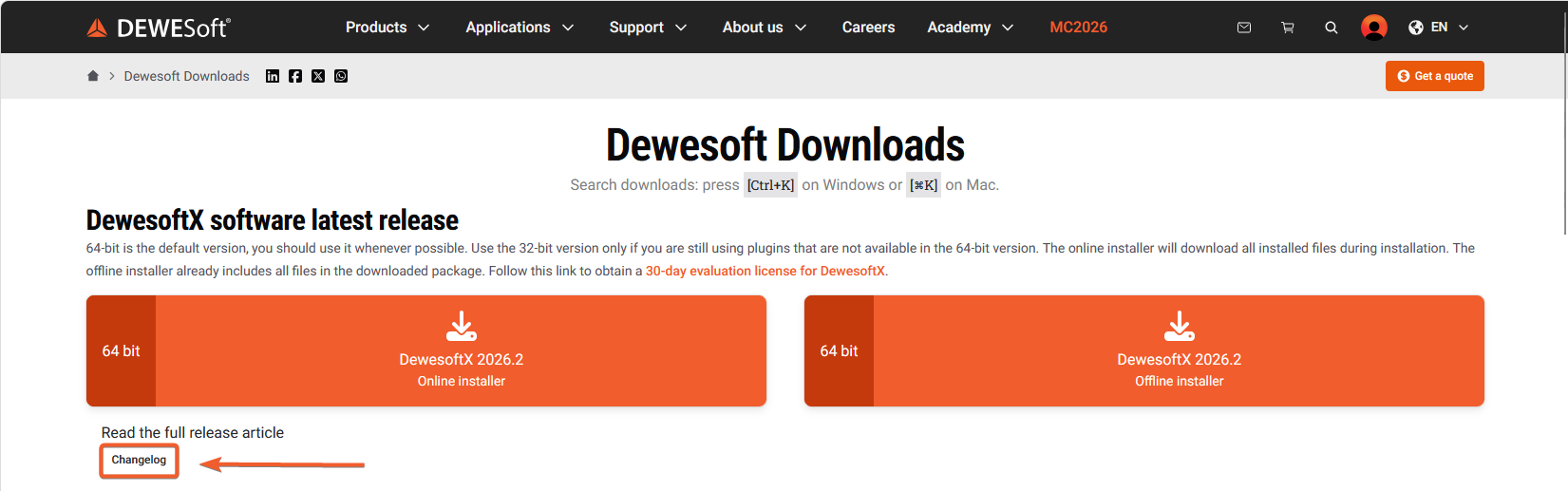
All the changes this release brings are summed up in the changelog. To access it, please open our Downloads webpage, then look for the Changelog under the latest release Offline installer in the DewesoftX software latest release section. There, you can also find the direct link to our full Official release newsletter.