Introduction
This article complements the Official release newsletter and focuses on graphically representing features that were briefly mentioned in the newsletter under the "What else is new?" section.
The most notable features in the 202X.X release are fully presented in the Official release newsletter and are listed in the following list:
- Online SRS Analysis
- Optimized Modal Test and Analysis Modules
- HBV (Human Body Vibration) New Features
- Dedicated Steady Speed Operation Modes in Rotating Machinery Angles
- FW Upgrade Functionality in Navion Plugin
- DS-IMU-N1 Support in DS-IMU Plugin
To enhance the image, either right-click the image directly, which slightly enlarges it, or ''Open image in new tab'' by right-clicking it, which allows you to zoom further into the image.
Online installer automatically enables Async Index Structure to improve data visualization across widgets.
Over the past few years our developers have improved data visualization across widgets. The result is the Async Index feature, which until now was not enabled automatically.
With DewesoftX 2026.1 Online installer, Async Index will be enabled automatically when the software is installed or when a new project is created. We can disable or re-enable it at any time in Settings → Advanced → Performance → Create and store index tree for async channels.
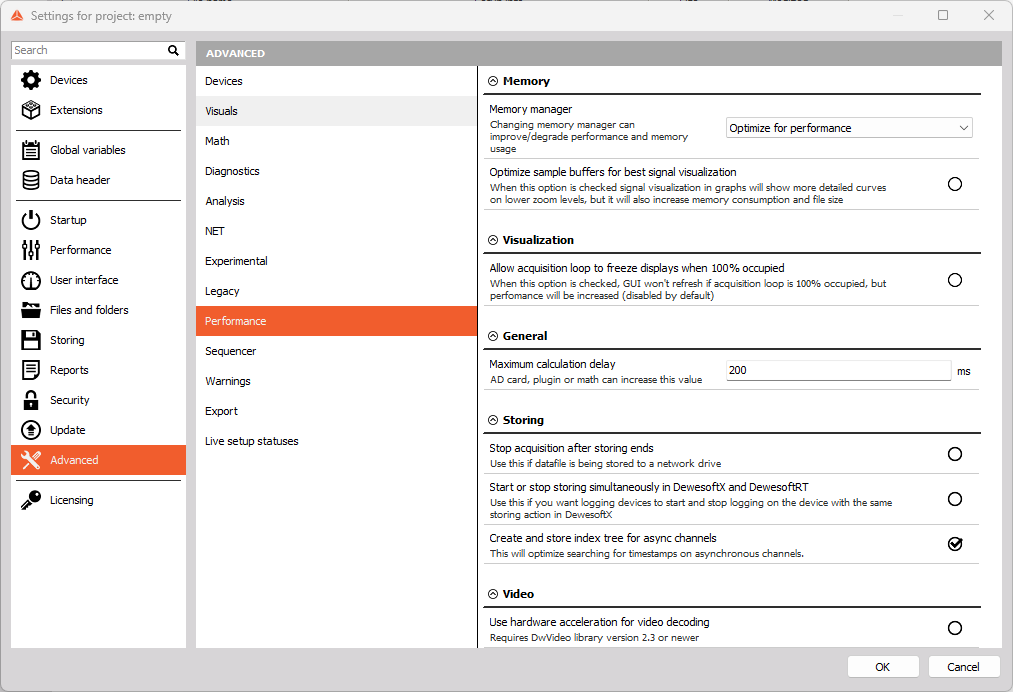
If we use the Offline installer, the default behavior remains unchanged: Async Index will be disabled for newly created projects, but we can enable it in the same Settings location.
CEA module updates:
Dewesoft 2026.1 brings some useful features to the CEA module, version 2.0.0, that will make the module nicer to work with:
Dynamic shims from channel for each separate cylinder
In the previous release we added dynamically adjustable shim heights. Based on user requests, we’ve now added the ability to set the shim factor for each cylinder individually which is particularly useful for engines where shim heights are hydraulically adjusted per cylinder.
When using a 2-stroke Industrial engine type, we can enable dynamic shims with the option located directly beneath the Shims input box. Enabling it adds a new row to the Cylinder overview called Dynamic shims, Source; on the right side of that row we can select the channel that supplies the shim factor for each cylinder.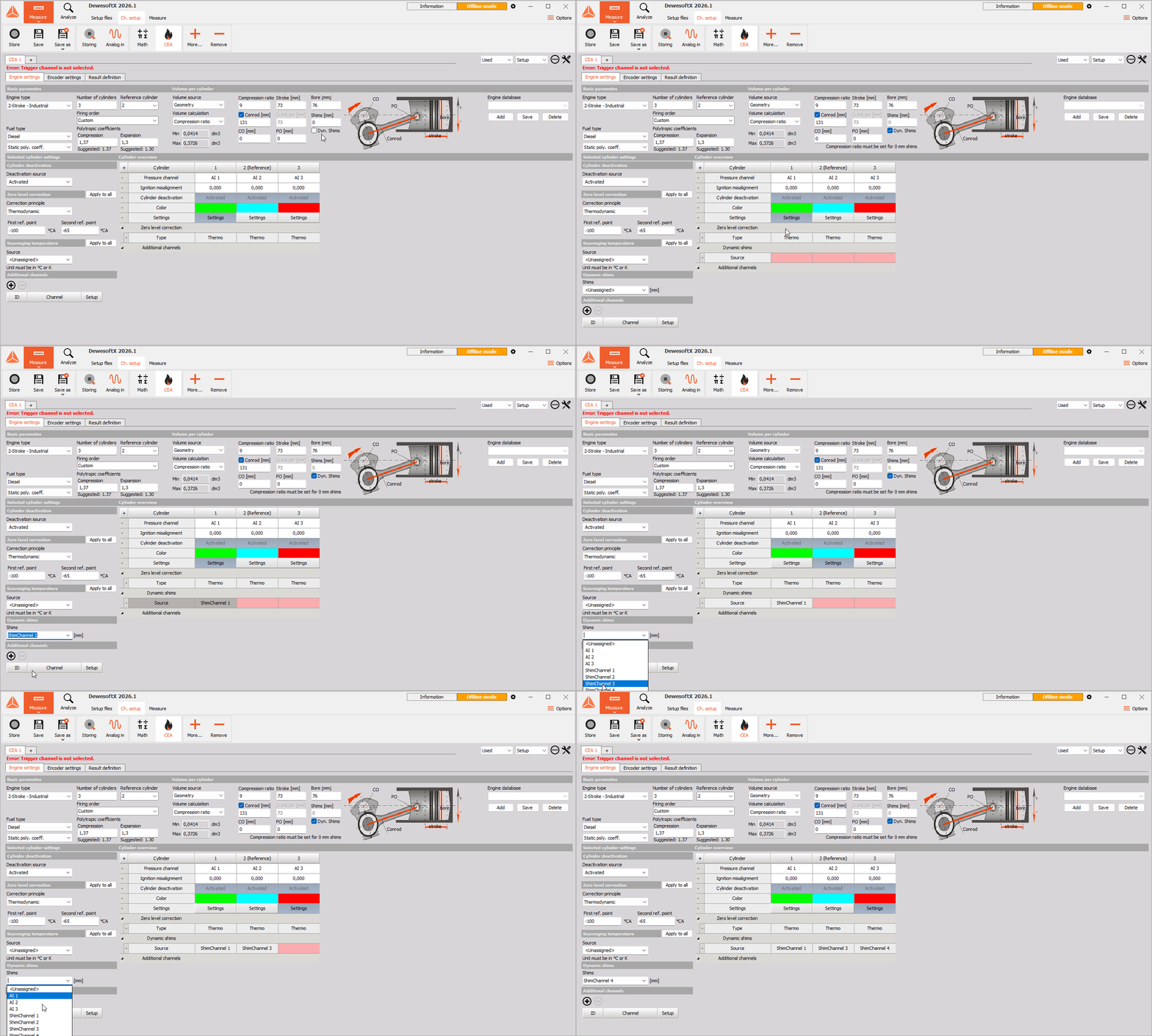
Output engine geometry parameters as single value channels
Sometimes our workflow requires exposing engine geometry parameters on the testbed for further processing, which was previously not possible. To address this, our developers added an Output parameters as channels checkbox. When enabled, DewesoftX will generate channels for compression ratio, stroke, bore, connecting-rod length, CO and PO that can be assigned to Dewesoft widgets or used later in the workflow.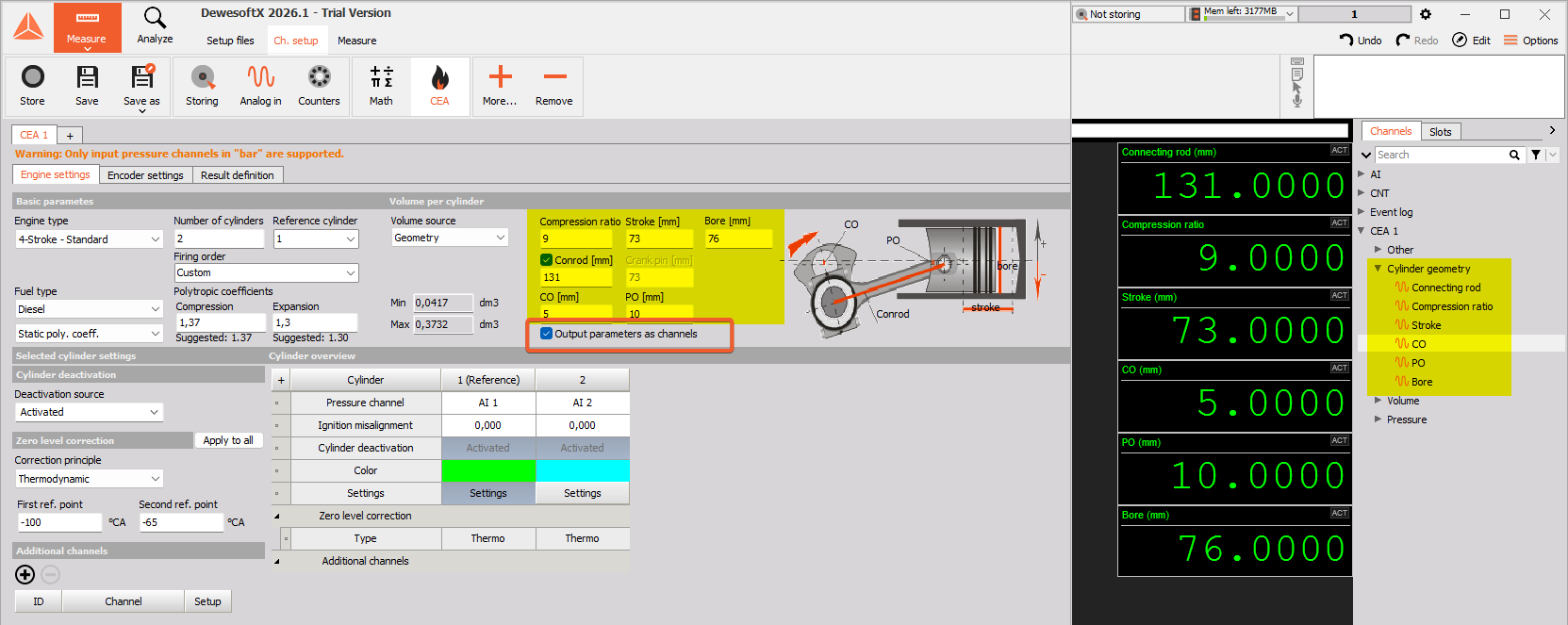
Pressure reference value on trigger
Previously, CEA's Zero level correction principle offered four modes:
None, Thermodynamic, Fixed value, and Measured value.
Many users, however, noted that zeroing is often triggered by signals (for example valve position) that change across the RPM range and therefore cannot be represented by a single fixed correction point.
To address this, we've added a new Correction principle, Measured value on trigger mode. Instead of a single fixed correction point, this mode uses trigger channels, sampling the correction value from a selected reference channel each time the trigger occurs. This allows zero-level corrections that follow event-driven changes (such as valve position) throughout the RPM range.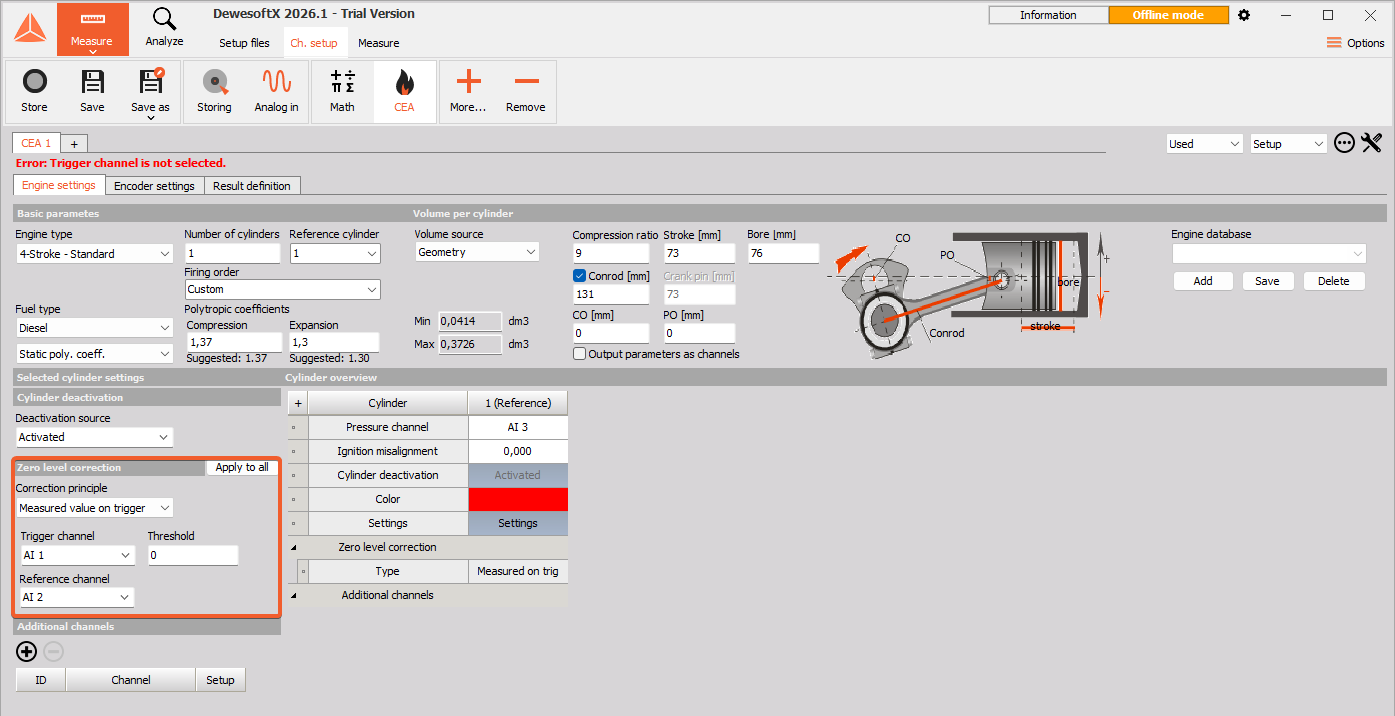
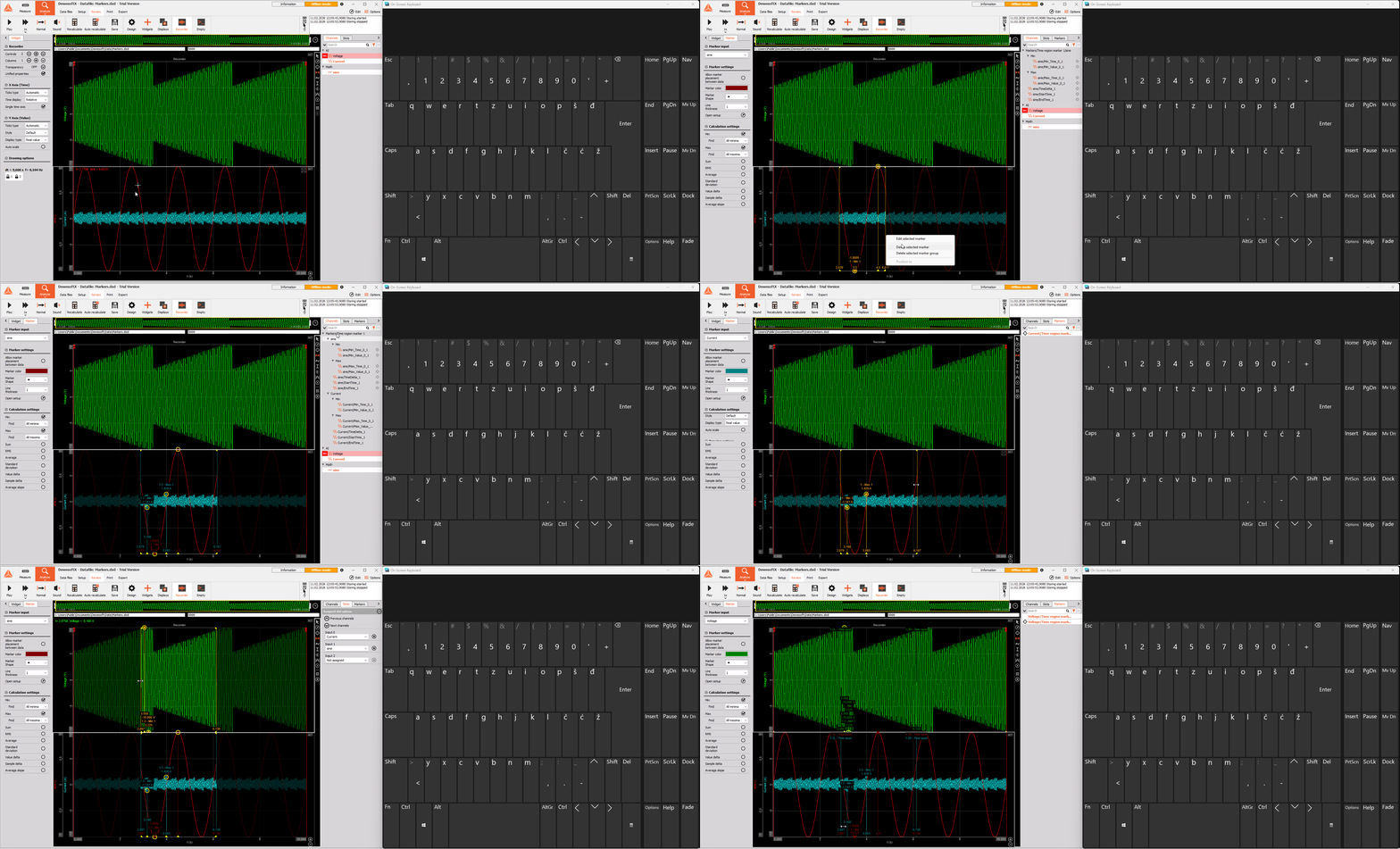
Time-region markers can now be applied to multiple channels at once using Ctrl key or across designated Recorder Groups with Ctrl+alt.
Recent DewesoftX releases added Time region markers to Recorder widgets. In DewesoftX 2026.1 (Time region marker v1.1.0) we added keyboard shortcuts to make working with these markers faster. The shortcuts are as follows:
- Hold Ctrl while creating a Time region marker to apply it to all channels in the same widget.
- Hold Ctrl+Alt while creating a Time region marker to apply it across designated Recorder Groups.
Easily trace your workflow with highlighted connection lines between action blocks in the Sequencer.
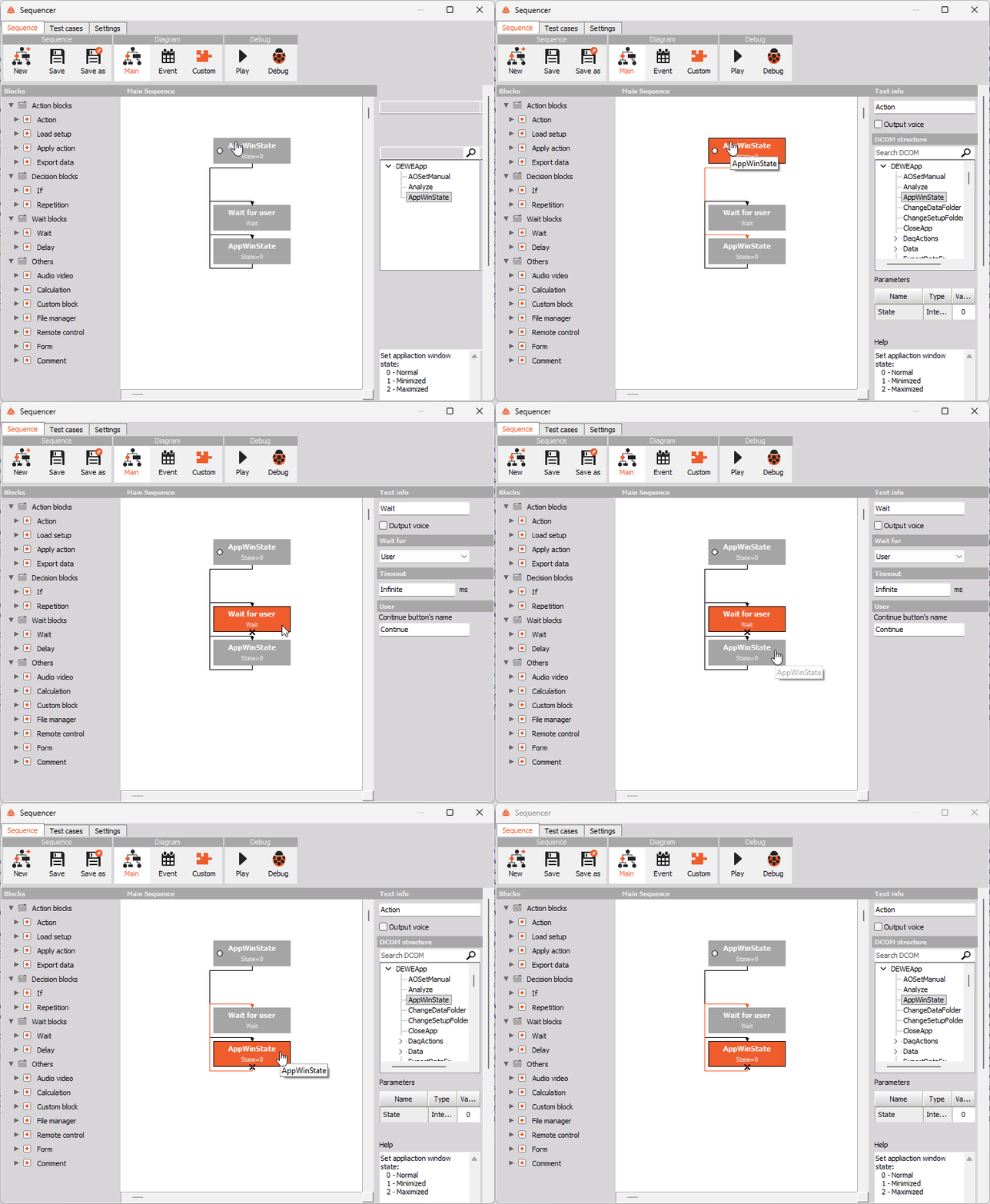
Setting up a Sequencer file can be tedious and confusing, especially when many action blocks are involved. To help prevent mistakes from losing track of the sequence, our developers updated the Sequencer so that when we select a block, the connection line to its next block is highlighted in bright red, making the flow easy to follow.
Order Analysis now supports FFT vs. time waterfall results with relation to speed data.
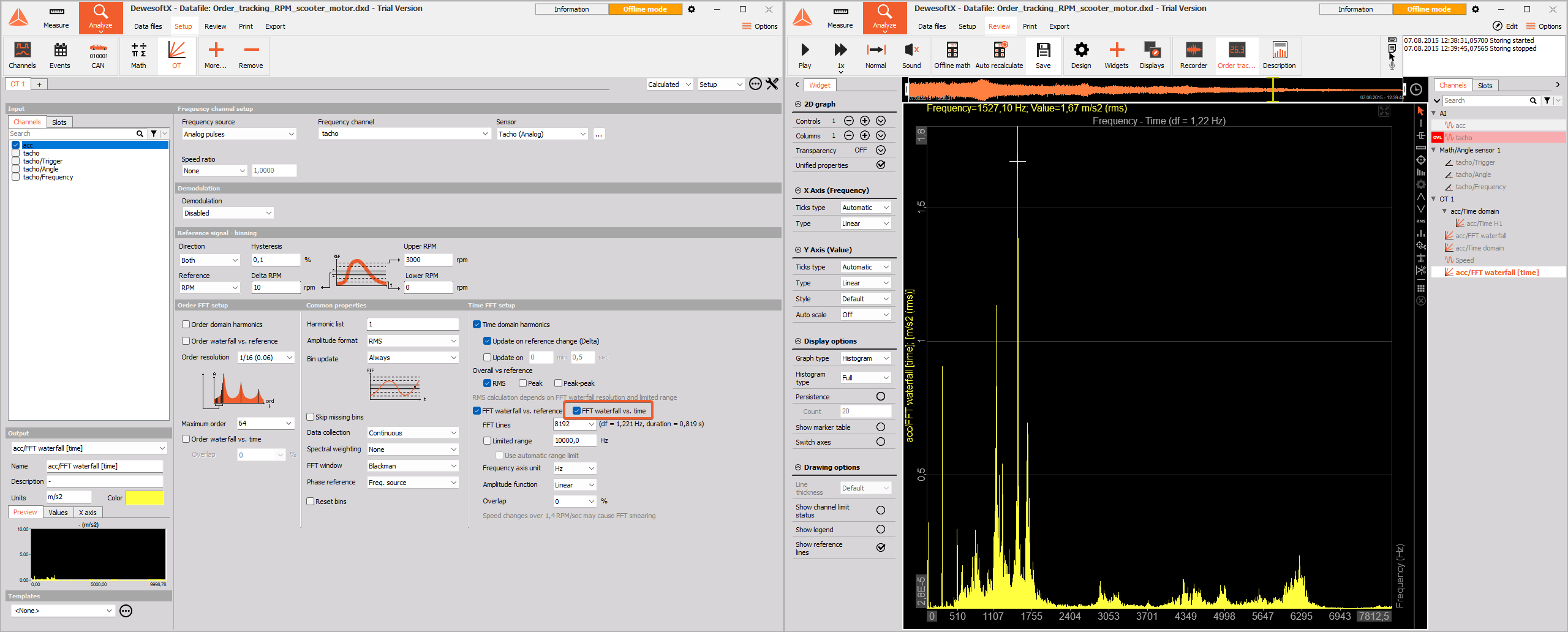
We received many requests to support more order-based analysis of FFT frequency data. Until DewesoftX version 2026.1, the usual workflow was to add an FFT Analysis module to the Order Analysis setup, which allowed us to inspect the FFT-vs.-time output. The downside of that workaround was that we had no reliable way to know which speed signal to link to it.
To improve the user experience, our developers added an FFT waterfall‑vs‑time feature to the Order Tracking module’s Time FFT setup. This makes the workflow easier and allows the correct speed data to be associated with the FFT‑vs‑time output. The result is an acc/FFT waterfall [time] channel that can be assigned to a 2D graph.
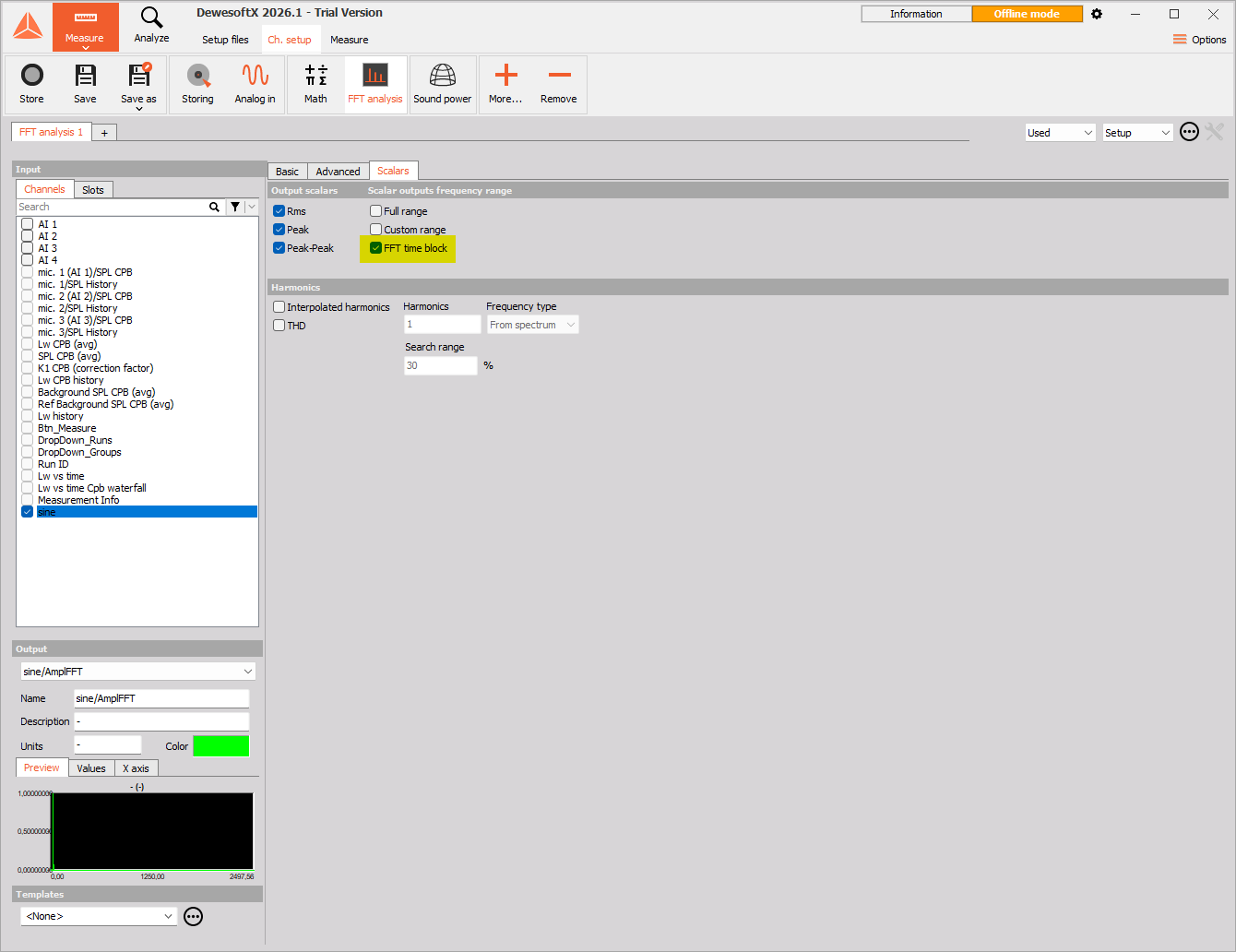
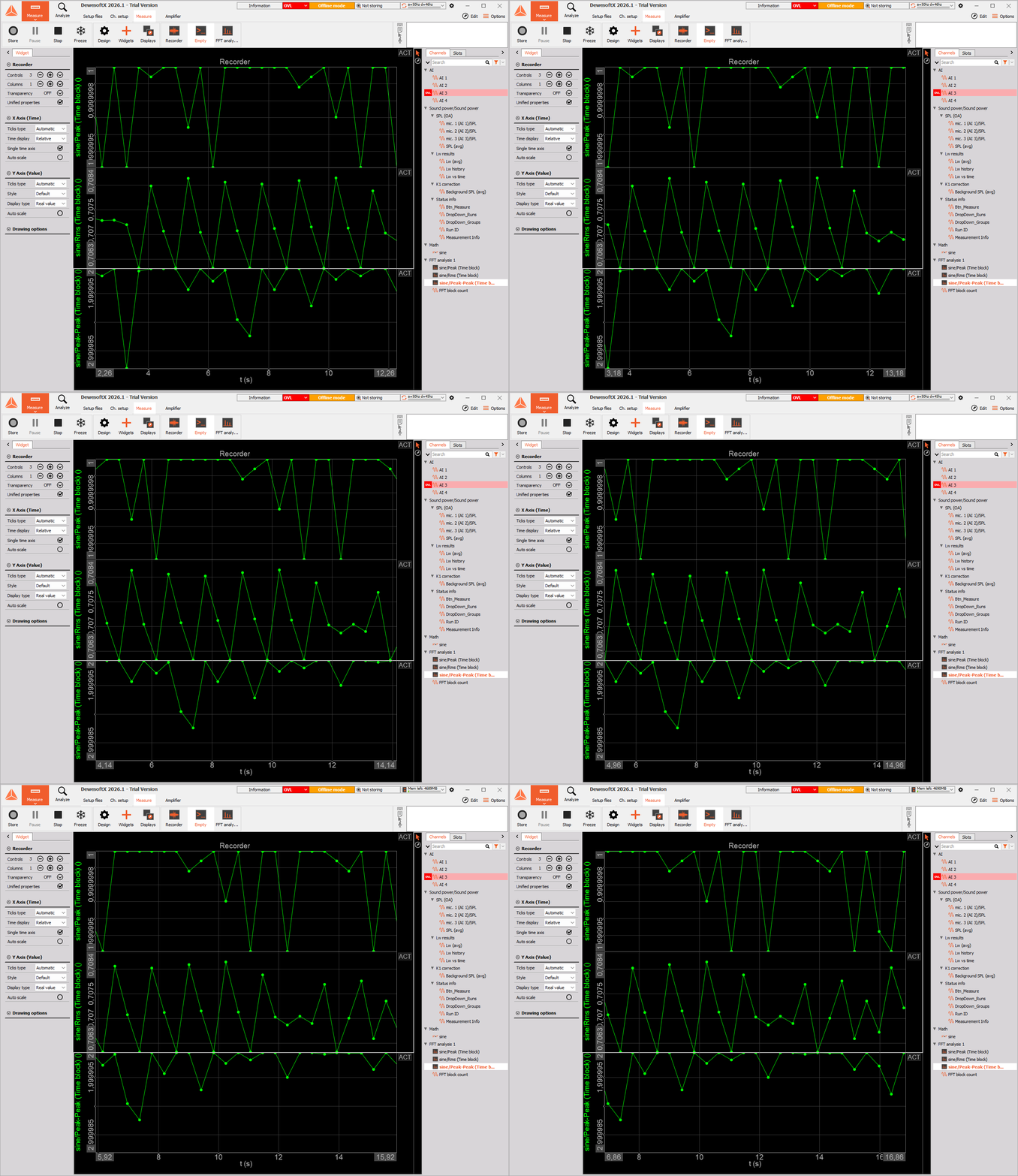
FFT Analysis now supports Scalar outputs for Peak and PkPk based on direct time data.
We know many users rely on peak-to-peak values computed across each FFT time block because they provide accurate, direct scalar metrics and simplify workflows that need time-domain extremes alongside spectral information - short impulses, pulses, and complex waveforms can be poorly represented in an FFT amplitude spectrum, while time-domain measures capture their true instantaneous extremes.
To accommodate this, the FFT Analysis module now offers scalar outputs based on time-domain data for Peak and Peak-to-Peak measurements. This functionality is located under the Scalars tab. After selecting the FFT time block option under Scalar outputs frequency range, we can choose between RMS, Peak, Peak-Peak (or all) options from the Output scalars section.
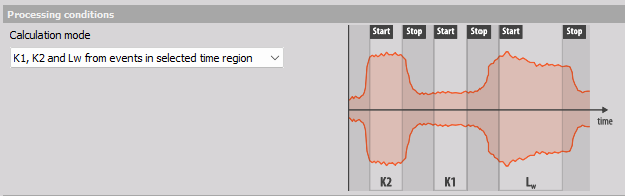
Sound Power post-calculation principles are now illustrated on the setup page.
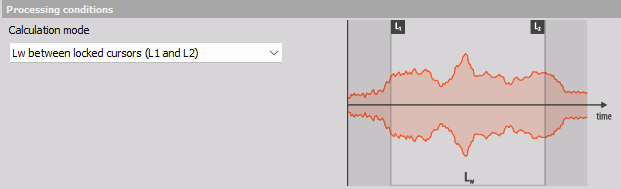
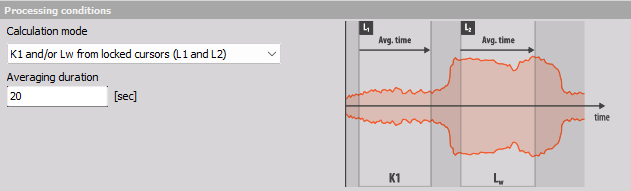
In the Sound Power module 5.4.0, that was released alongside DewesoftX 2025.3, our developers introduced a simplified workflow for sound power post-processing with a dropdown menu in the Processing conditions section. To improve the module even further, the 5.5.0 version of the module introduces images that clearly highlight how each calculation mode operates.
Changelog
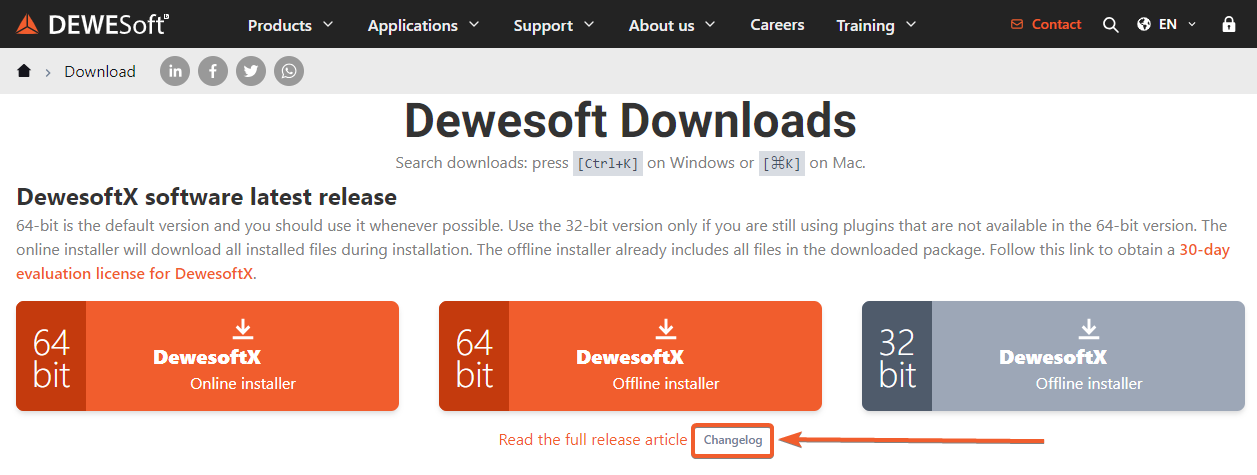
All the changes this release brings are summed up in the changelog. To access it, please open our Downloads webpage, then look for the Changelog under the latest release Offline installer in the DewesoftX software latest release section. There, you can also find the direct link to our full Official release newsletter.